


Viewing and editing metadata
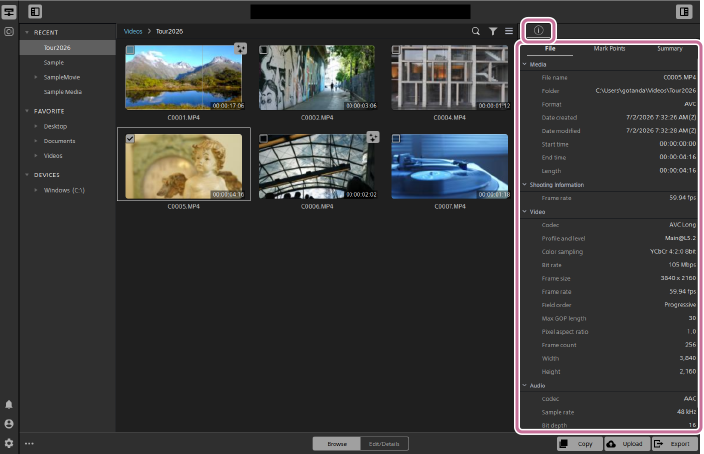
You can view and edit the metadata content if the selected clip contains metadata.
-
Click the following button in the upper right of the screen to open the metadata panel.
 : [Metadata] button
 -
Select the tab you want to view or edit from the following tabs at the top of the metadata panel.
- [File] tab
- [Mark Points] tab
- [Summary] tab
[File] tab
Displays the following metadata. You cannot edit the metadata itself.
- Media information
- Shooting information
- Video information
- Audio information
- Device information
- Acquisition metadata
Hint
- You can pin an item to the top of the item list by clicking the pin symbol that appears to the left of the item.
[Mark Points] tab
You can add, edit, and delete mark points.
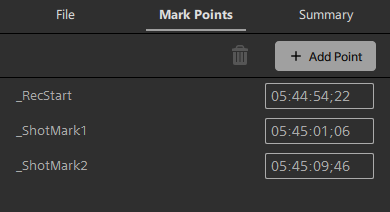
- To add a mark point, use the trackbar to select the position where you want to add the mark point, and then click the [Add Point] button. You can also add points with the keyboard shortcut key [E].
 : [Add Point] button
 - You can directly edit mark point names and timecode values by clicking on them.
- To delete a mark point, select the mark point, and then click the following button.
 : Delete button
[Summary] tab
You can view or edit the following items.
- Mark-in/mark-out timecode
- Flag information (OK/Keep/NG (no good)), clip title, creator, etc.
- Audio channel assignment
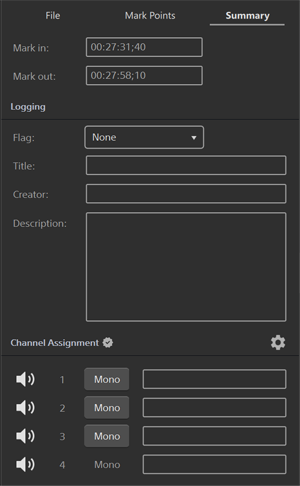
- You can set the flag information for clips using the [Flag] drop-down list.
- You can switch between mono and stereo audio by clicking the following button under [Channel Assignment].
[Mono] / [Stereo]
- You can save and load channel assignment settings, copy assignment settings to other clips, etc. from the menu that appears when you click the [Channel Tools] button.
 : [Channel Tools] button
Note
- Some clip formats may not support all metadata.
TP1002508889