


Monitor display and color wheel
Additionally, you can intuitively adjust colors using the color wheel. The color wheel is used to edit ASC-CDL parameters.
You can toggle the display of each monitor and color wheel by using the following buttons in the lower left of the screen.
 : [Waveform] button
 : [Histogram] button
 : [Vectorscope] button
 : [Wheels] button
Waveform monitor
The waveform monitor displays the luminance value (brightness or Y component) of the video signal. The monitor plots luminance values on the vertical axis and the width of the frame on the horizontal axis.
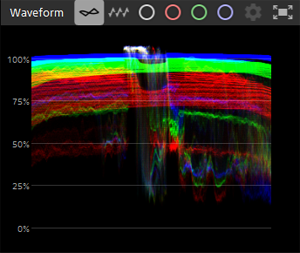
Use the following buttons to switch the waveform monitor display.
 : Click this button to display the overlaid waveform.
 : Click this button to display separate RGB waveforms.
 : Click this button to display the Y component.
 : Click this button to display the R component.
 : Click this button to display the G component.
 : Click this button to display the B component.
 : Click this button to display the monitor in a new window.
You can adjust the waveform monitor display by clicking the following button.
 : [WAVEFORM SETTINGS] button
The following items can be adjusted:
- Scaling of the waveform monitor
- Changing the units displayed on the waveform (% or Nits)
- Toggling AIR* Matching on/off when grading HDR clips
* Artistic Intent Rendering
Note
- The [WAVEFORM SETTINGS] button can only be used if both of the following two conditions are met.
① The working color space is set to [Rec.2020/S-Log3 (HDR)].
② The preview color space is set to one of the following:- [Rec.2020/S-Log3]
- [Rec.2020/HLG]
- [Rec.2020/HLG AIR Matching (Live)]
- [Rec.2020/HLG AIR Matching (Mild)]
- [Rec.2020/HLG (bypass OOTF)]
- [Rec.2020/PQ]
- [Rec.2020/PQ AIR Matching (Live)]
- [Rec.2020/PQ AIR Matching (Mild)]
- [Rec.2020/PQ (bypass OOTF)]
- If [Preview color space] is set to any of the following, the Nits value will be calculated for a peak luminance of 1 000 cd/m2.
- [Rec.2020/HLG]
- [Rec.2020/HLG AIR Matching (Live)]
- [Rec.2020/HLG AIR Matching (Mild)]
- [Rec.2020/HLG (bypass OOTF)]
- You can use AIR Matching with the [AIR Matching] switch in the following cases:
[Preview color space] > [Rec.2020/S-Log3]
Turning on the [AIR Matching] switch allows you to match the appearance of Rec.2020/S-Log3 based grading with the image displayed on a configured HLG*1 or PQ*2 monitor.*1 Hybrid Log-Gamma
*2 Perceptual Quantizer
Histogram monitor
The histogram monitor displays the number of pixels that exist for each color intensity. The monitor plots the number of pixels on the vertical axis and the RGB color range from 0 to 255 on the horizontal axis.
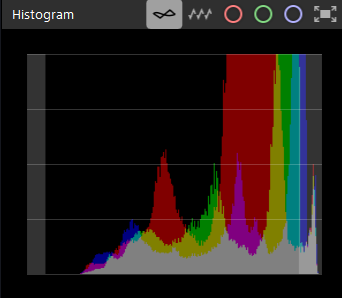
Use the following buttons to switch the histogram monitor display.
: Click this button to display the overlaid waveform.
: Click this button to display separate RGB waveforms.
: Click this button to display the R component.
: Click this button to display the G component.
: Click this button to display the B component.
: Click this button to display the monitor in a new window.
Vectorscope monitor
A vectorscope can be used to monitor the chroma values (color content) in the video signal. The monitor plots hue and saturation on a color wheel.
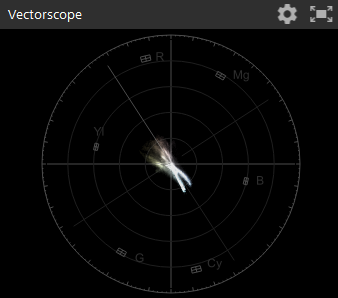
The vectorscope displays saturation targets for red (R), magenta (Mg), blue (B), cyan (Cy), green (G), and yellow (Yl) defined by broadcast standards. The individual colors in the video signal are displayed as dots in the vectorscope. The distance from the center of the scope to the dots represents the saturation, and the angle of the line from the dots to the center of the scope represents the hue.
For example, if an image has a blue cast, the distribution of dots in the vectorscope will be concentrated toward the blue portion of the color wheel. If the image contains blue values that are outside the range, the vectorscope display will extend beyond the blue target.
You can adjust the vectorscope monitor by clicking the following button.
: [VECTORSCOPE SETTINGS] button
: Click this button to display the monitor in a new window.
The following items can be adjusted using the settings button:
- Changing the scale of the scope
- Switching the scope to monochrome display
- Adjusting the brightness of the colors displayed in the scope
- Adjusting the brightness of the scope guide line (graticule)
Color wheel
The software provides color wheels for Lift, Gamma, and Gain. The current levels are visually displayed so that you can intuitively adjust the colors. Since the display on each monitor and the clip preview will update during adjustment, you can check color changes in real time.
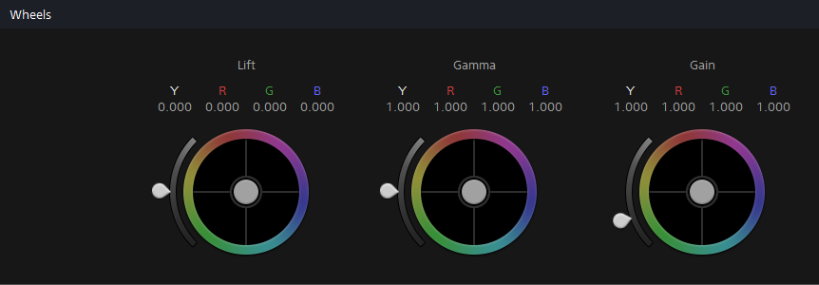
To adjust the hue and saturation, drag the center point of the color wheel. Additionally, to increase the luminance of all RGB components simultaneously, drag the slider handle next to the color wheel. To reset the color wheel, double-click the center point to which you moved. To reset the luminance, double-click the slider handle.
Hint
- You can use the vectorscope to adjust the colors between scenes. Without adjustment, the color tones between scenes shot with multiple cameras may differ noticeably.
- You can also use Tangent Control to adjust the color wheel.
- To move the center point of the color wheel or the slider handles in larger increments, drag while holding down the [Shift] key on your keyboard.
- To fine-tune the center point of the color wheel or the position of a slider handle, drag while pressing the following key on your keyboard.
Windows: Ctrl
macOS: ⌘