


Rotating clips
You can select whether to rotate the clip thumbnail or video preview if the clip contains rotation metadata.
Rotating thumbnails
- Click the following button in the lower left of the screen to select [Preview & thumbnails].
 : [Settings] button
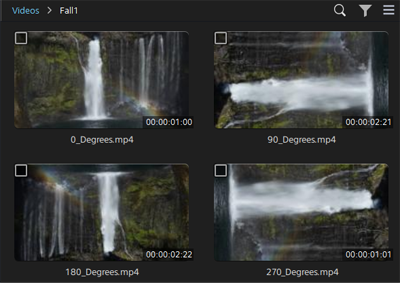
 - Turn on the [Automatically rotate thumbnails] switch.
- This software detects the rotation metadata of clips and adjusts the display angle of the thumbnails on theBrowse screen.
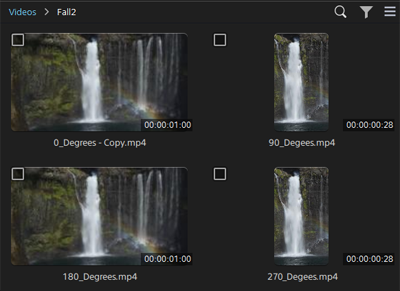
- The rotation metadata is ignored if the switch is turned off.
Rotating video previews
- Select a clip, and then set the mode selector to [Edit/Details].
A preview of the selected clip will be displayed.
- Click the following button at the top of the preview.
 : [Clip settings] button
The [Clip settings] panel will open.
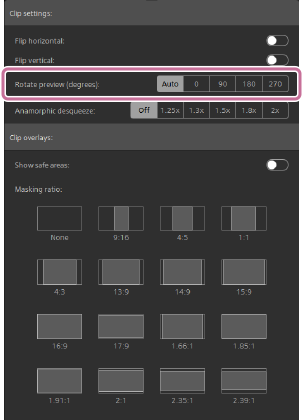
- Select the rotation angle of the preview from the following options.
Rotate preview (degrees): Auto / 0 / 90 / 180 / 270
- When you select [Auto], the preview display angle will be adjusted based on the rotation metadata of the clip.
TP1002508892