


Cloud upload
You can upload clips from your computer to Ci Media Cloud storage.
This operation can be performed from any of the following screens.
- [Browse] screen
- [Edit/Details] screen
- Select a clip you want to upload.
- You can also select multiple clips and upload them all at once.
- Click the following button in the lower right of the screen.
 : [Upload] button
The [Upload] dialog will open.
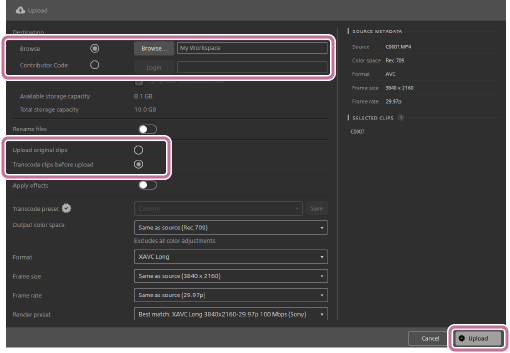
- You can also open the dialog by selecting [Upload] from the menu that appears when you right-click on the clip.
- Click [Browse...] to select the folder in the cloud storage for upload.
- There are two login methods for Ci Media Cloud.
- Enter the registered username or email address and password.
- Select [Contributor Code] and enter the code.
If you have a Sony Account, you can also log in using it.
- Turning on the [Rename files] switch allows you to change the name of the uploaded clip. You can add any string before or after the clip name or change the clip name to a sequential number.
- There are two login methods for Ci Media Cloud.
- Select one of the following options to set whether or not to transcode the clip before upload.
[Upload original clips]/[Transcode clips before upload]
- Transcoding settings will be displayed when you select [Transcode clips before upload]. Refer to the following page for details on transcoding.
Transcoding clips
- Transcoding settings will be displayed when you select [Transcode clips before upload]. Refer to the following page for details on transcoding.
- Click the [Upload] button.
The selected clips will be uploaded to the specified cloud storage.
TP1002508909