


Account and settings
You can view user information. Additionally, you can review and change settings related to the entire software, color management, and external monitors.
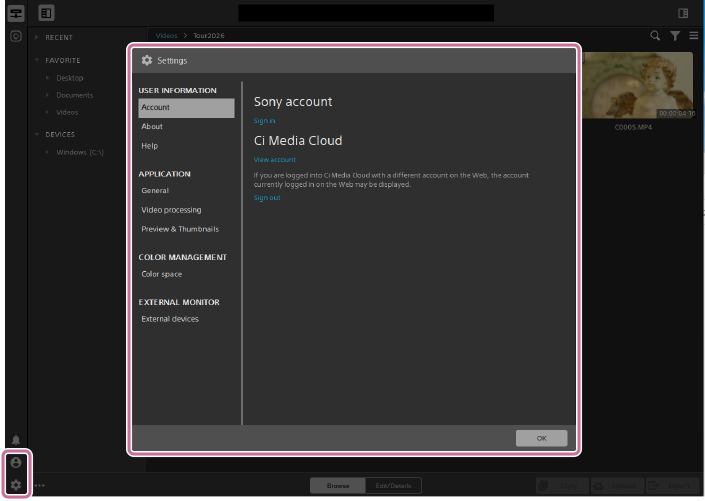
-
Click the following button.
 : [Account] button
 : [Settings] button
- The [Settings] screen will open.
- Clicking the [Account] button will display your account information.
- Clicking the [Settings] button will display the application’s setting information.
- Click the menu on the left to switch screens.
- USER INFORMATION
- APPLICATION
- COLOR MANAGEMENT
- EXTERNAL MONITOR
For details on the items that can be set and displayed on each menu screen, refer to the following.
User information setting/display items
- Account:
- Clicking below will display the sign-in screens for both your Sony account and Ci Media Cloud.
[Sign in]
If you are already signed in, your account name and registered email address will be displayed.- Click [View account] to access the Creators’ Cloud or Ci Media Cloud settings webpage.
- Click [Sign out] to sign out of Creators’ Cloud or Ci Media Cloud.
- About:
- You can find information about using this software. (Version information / License information / Update information / Latest information, etc.)
- Help:
- You can view links to support information for this software. (Help / Support / Provide feedback)
Application settings
- General:
- You can check or modify settings that apply to the entire software.
- Default transcode format
- Map service that will be used to display maps when you click GPS links in a clip’s metadata
- Where to save snapshots
- To change the location, click the
 (Save snapshots to) button to select a folder, or enter the path directly.
- To change the location, click the
- Snapshot image format
- You can select from JPG/PNG/BMP.
- Video processing:
-
You can set GPU-accelerated video playback and transcoding.
[Video processing device]: The optimal GPU device is automatically selected.
- Changing this value is intended for advanced users and may be useful for troubleshooting technical problems.
- Select [CPU] if you want to turn off GPU acceleration.
- High-quality deinterlacing is applied to interlaced source media when playback is paused, during transcoding, and during playback when the following setting is selected.
[PLAYBACK SETTINGS] > [Speed/Quality] > [Quality] - High-quality upscaling is applied during transcoding when you select an HD or UHD render preset.
[OpenCL/OpenGL interoperability (requires restart)]: Toggles OpenCL and OpenGL interoperability on or off. (Performance/Compatibility)
- Restarting your computer is required to change the settings.
- Select [Performance] to enable OpenCL and OpenGL interoperability. We recommend using [Performance] in most cases for optimum playback performance.
- Select [Compatibility] to turn off interoperability if you notice artifacts or corruption in rendered frames.
- Preview & thumbnails:
-
You can switch between enabling/disabling the display of previews or thumbnails and configure other settings.
[Secondary preview window]: Setting to show the video preview in a secondary window that you can position anywhere on your screen or on a secondary monitor
[Preview using proxy clips]: Setting for playback using proxy clips
- Proxy clips may not be available in all cases.
[50p/60p half-step timecode display]: Setting to display timecodes in the half-step mode during playback of 50p/60p clips
[Show thumbnails]: Setting to display thumbnail images on the [Browse] screen
- Turning the switch off can improve performance on some slower storage devices.
[Number of thumbnail frames]: Setting for the number of frames to show screen transitions with thumbnails (3 to 30)
[Automatically rotate thumbnails]: Setting to automatically rotate the thumbnail frame based on camera rotation metadata on the [Browse] screen
[Clear thumbnail cache]: To delete the cached data for thumbnail display, click the [Clear] button.
Color management settings
- Color space:
-
You can set the working color space, the video preview color space, and the external monitor color space.
[Working color space]: Select the color space that will be used for color grading.
[Preview color space]: Select the color space for the preview screen of this software.
- In most cases, select [Rec.709] for your computer monitor.
- You can also select other color spaces when, for example, checking video using scopes.
[External monitor color space]: Select a color space that matches the EOTF* setting of your external monitor.
* Electro-Optical Transfer Function
External monitor settings
- External devices:
-
Select the settings when displaying a video preview on an external monitor via a Blackmagic Design device. (External monitor device/Monitor resolution)
- When an external monitor connection is detected, the setting options will be displayed.
Refer to the following page for details on sample external monitor settings.