


Managing clips
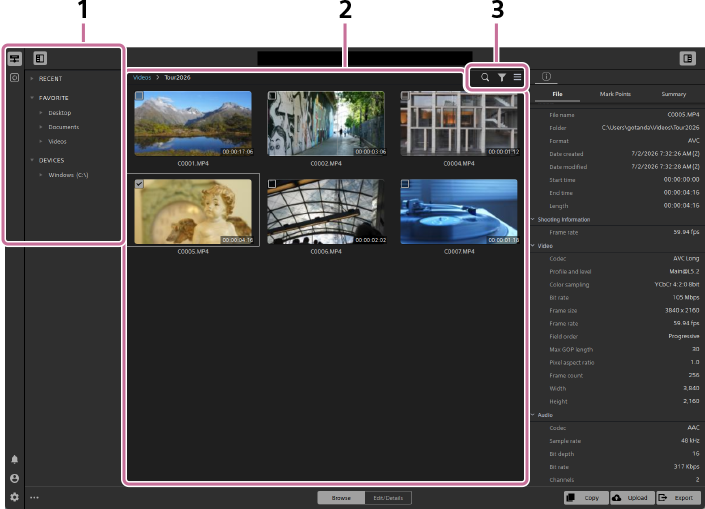
| Number | Classification | Button/Icon | Description |
|---|---|---|---|
| 1 | Storage/Folders | ― | Select a storage or folder to load clips. |
| 2 | Thumbnail/List panel | ― | You can view the clips in the selected storage or folder. The buttons and icons displayed on the thumbnails provide various types of information on each clip. |

|
This icon indicates that the clip is selected. | ||

|
This button indicates whether the clip contains metadata for correction. Click this button to check the type of correction metadata. | ||

|
Click this button to turn the preview of the corrected clip on or off. Refer to the following section for details. Preview screen operations > About applying correction effects |
||
 / / / /
|
These icons indicate that one of the three flags is set on the clip. | ||

|
This icon indicates that an error has been detected in the clip. | ||
| 3 | Search/Filter/Field/Toggle view |

|
Click this button to search for clips by file name, etc. |

|
Click this button to set conditions to filter the clips you want to display. | ||

|
Click this button to set the items to display and rearrange their order (only in the list view). | ||
 / /
|
Click these buttons to switch between the thumbnail view and list view. |
Loading clips
Select a storage or folder to load clips. (Media cards/External memory/HDDs/Cloud storage)
Selecting clips
Clicking a clip in the thumbnail or list view displays its metadata. In addition, when you hover over a clip in the thumbnail view, a preview of several frames appears.
When you select a clip, a check mark appears in the upper left of the thumbnail. You can also select multiple clips at the same time.
Double-clicking a clip switches to the [Edit/Details] screen, where you can preview and edit the clip.
Search
Select a folder in the left panel and click the [Search clips with text] button, and then enter search text. You can search text in filenames and metadata summaries.
: [Search clips with text] button
Filtering
Clicking the [Filter clips] button displays a drop-down list at the top of the panel to set filtering conditions. When you set filtering conditions, only the clips that meet those conditions will be displayed.
: [Filter clips] button
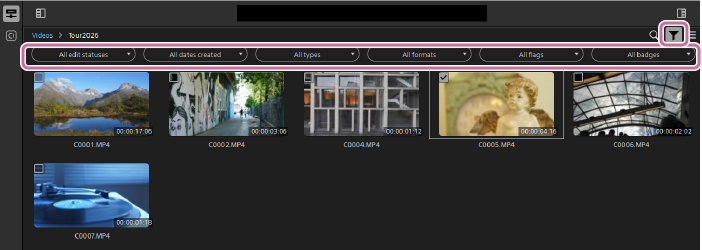
- The filtering conditions you can set are as follows.
Edit status: You can filter clips by whether correction is applied
Creation date: You can filter by specifying the period in which the clips were saved.
Type: You can filter by container format, such as MP4 or MOV.
Format: You can filter by video format such as XAVC S or Sony RAW.
Flag: You can filter by the flags (OK/Keep/NG (no good)).
Badge: You can filter by the type of correction metadata, such as image stabilization.
Others: This options will be displayed when the window size is reduced. When the window size is increased, all filtering conditions will be displayed.
Field
In the list view, the [Customize fields] button is displayed.
: [Customize fields] button
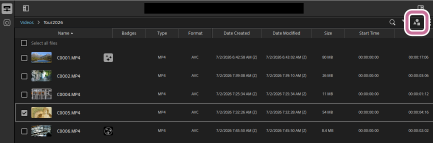
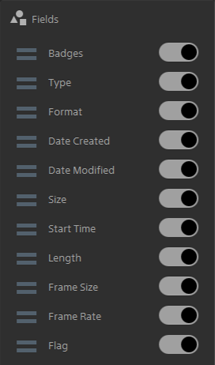
Clicking the [Customize fields] button displays the following panel. You can then toggle the display of items on and off and rearrange their order by dragging them up or down.
Thumbnail/List
Each time you click the following button, the view switches between the thumbnail view and list view.
: Thumbnail view
: List view
Other file management
Context menu
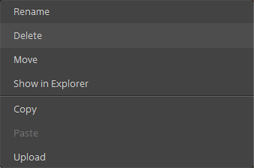
You can copy, delete, or rename clips, etc. from the context menu that appears when you right-click on a clip.
Add to favorites
You can add a folder containing frequently used clips to Favorites.
With the folder selected, click the following button in the lower left of the screen, and then select [Add to Favorites].
 : [More options] button
Hint
- You can also copy clips from the dialog that opens when you click the [Copy] button in the lower right of the screen. In this case, you can set various copying conditions.
 : [Copy] button