


Creating snapshots
You can create a snapshot of the current frame during preview.
Copying a snapshot to the clipboard
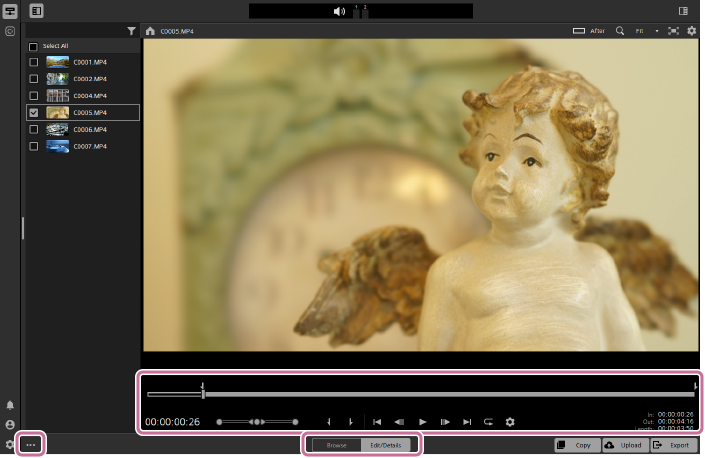
- Select a clip in the thumbnail/list panel, and then set the mode selector to [Edit/Details].
- Use the transport controls or trackbar to display the frame for which you want to create a snapshot.
- Click the following button in the lower left of the screen to select the [Others] tab.
 : [More options] button
 - Select [Copy snapshot to clipboard].
A snapshot of the current frame will be copied to the clipboard.
- You can also copy snapshots using the following keyboard shortcuts.
Windows: Ctrl+C
macOS: ⌘+C
- You can also copy snapshots using the following keyboard shortcuts.
Creating snapshots
- Select a clip in the thumbnail/list panel, and then set the mode selector to [Edit/Details].
- Use the transport controls or trackbar to display the frame for which you want to create a snapshot.
- Click the following button in the lower left of the screen to select the [Others] tab.
: [More options] button
- Select [Save snapshot].
A snapshot of the current frame will be saved.
- You can also save snapshots using the following keyboard shortcuts.
Windows: Shift+S
macOS: Shift+S
- Snapshots are saved in the following folders by default.
Windows: C:\Users\<Username>\Pictures\Catalyst Prepare
macOS: /Users/<Username>/Pictures/Catalyst Prepare
- You can also save snapshots using the following keyboard shortcuts.
Hint
- You can change the destination folder and file format for snapshots in the following settings.
[Others] > [Snapshot options]
TP1002509284