


Lens breathing compensation
This feature allows you to correct the effects of lens breathing for clips that contain lens breathing correction metadata.
Lens breathing refers to the phenomenon where the angle of view changes during focus drive while shooting video.
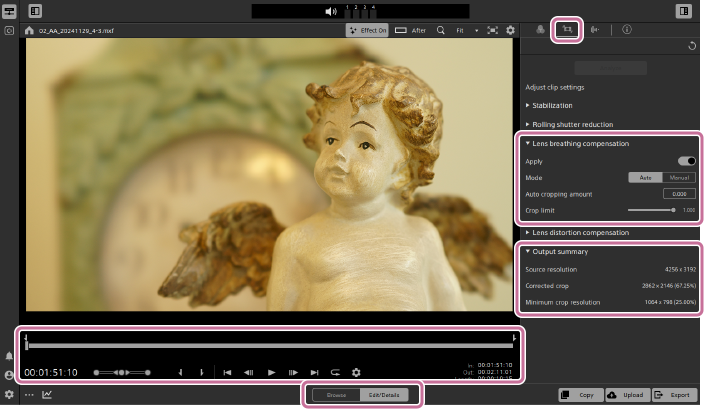
- Select a clip in the thumbnail/list panel and set the mode selector to [Edit/Details].
- Clips that include correction metadata will display the following button in the thumbnail/list panel.
 : [CONTAINS METADATA FOR] button
If clicking the [CONTAINS METADATA FOR] button displays the following icon, the clip includes lens breathing compensation metadata.
 : [Lens breathing compensation] icon
Note
- Clips that do not contain correction metadata cannot be corrected.
- Clips that include correction metadata will display the following button in the thumbnail/list panel.
-
Click the [CLIP ADJUSTMENTS] button in the upper right of the screen.
 : [CLIP ADJUSTMENTS] button
The [Adjust clip settings] panel will be displayed.
- When opening a clip that contains correction metadata, you will first be prompted to analyze the clip. Click the following button at the top of the panel.
 : [Analyze] button
- When opening a clip that contains correction metadata, you will first be prompted to analyze the clip. Click the following button at the top of the panel.
-
Specify the range to apply correction by setting mark-in and mark-out points on the trackbar.
- Refer to the following page for details on using the trackbar.
Preview screen operations
- Refer to the following page for details on using the trackbar.
-
Click [Lens breathing compensation].
Settings related to correction will be displayed.
- Refer to the following section for details on the settings.
Lens breathing compensation settings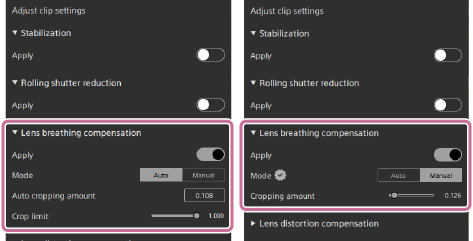
- Refer to the following section for details on the settings.
-
Turn on the [Apply] switch.
-
Click the following button at the top of the panel.: [Analyze] button
- If you have already performed analysis, the [Analyze] button may not be displayed.
-
Adjust the settings while checking the clip in the preview.
- While checking the preview after applying the correction, repeatedly adjust the settings until you get the desired result.
Information regarding the correction output will be displayed. Refer to the following section for details.
Output summary items
Note
- Depending on your operating environment, the image after correction may appear as a black screen.
- While checking the preview after applying the correction, repeatedly adjust the settings until you get the desired result.
-
Click the following button in the lower right of the screen to open the dialog, and then adjust the transcoding settings.
 : [Export] button
Note
- Refer to the following page for details on transcoding.
Transcoding clips
- Refer to the following page for details on transcoding.
-
Click [Export].
The results of the clip adjustments will be rendered to the specified clip.
Lens breathing compensation settings
- Mode:
- You can select between automatic and manual. When you select automatic, [Auto cropping amount] will be locked to the value of the part of the clip that is most affected by lens breathing. When you select manual, you can use the [Cropping amount] slider to set the cropping amount as you like.
- Crop limit:
- Drag the slider to set the cropping amount that can be applied to correct the clip.
- If the result of the automatic clip adjustment exceeds the set value, the crop limit will be used.
- If the result of the automatic clip adjustment is smaller than the set value, the automatic adjustment result will be used.
Output summary items
- Source resolution:
- The frame size of the source data before cropping will be displayed.
- Corrected crop:
- The size of the corrected frame after cropping will be displayed.
- Minimum crop resolution:
- When the cropping mode is set to automatic, the minimum size of the corrected frame will be displayed according to the [Crop limit] setting.
Hint
- If source clips captured with the Active image stabilization mode exhibit blurring when you select automatic, select manual and decrease the [Cropping amount] setting.
- When both lens breathing correction and image stabilization are enabled, the effect of lens breathing correction by this software may be weaker compared to the correction function on the camera. Review the original and corrected clips on the preview screen, and before exporting the clip correction results, turn off one of the following [Apply] switches as needed.
[Stabilization]/[Lens breathing compensation]
TP1002508901