


Monitoring audio using headphones
When [MODE SELECT] on the receiver is set to [2TX] and you are recording audio on the camera, you can monitor either the audio input to the microphones or the audio input to the camera through headphones. To monitor audio input to the camera, you need to connect the audio input jack on the receiver to the headphone output jack on the camera.
- Connect headphones to the receiver.
For details, see “Connecting headphones to the receiver.”
- Configure the headphone settings.
Select [HEADPHONE (TWS)] from the receiver's control menu screen to configure the settings.
To monitor audio from the microphones, select [CH1 / CH2]. To monitor audio from the camera, select [CAM HP].
For details about the settings, see “MONITOR SET..”
- Adjust the headphone monitor volume.
-
Display the receiver status screen on the receiver.
-
Press the control wheel/button to display the cursor on the screen.
-
Select and confirm the headphone volume display, then adjust the monitor volume on the [MONITOR VOL.] screen.
To display the [MONITOR VOL.] screen by a touch operation, tap the right half of the screen.
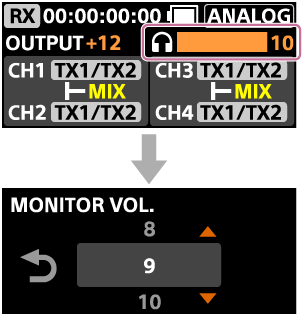
Turn the control wheel/button or swipe up or down on the screen to select the monitor volume value. After selecting the value, press the control wheel/button or tap to confirm.
If you do not change the value, tap
 (Back) to return to the receiver status screen.
-
Note
-
The receiver does not support monitoring audio through connected headphones when the sampling frequency is set to 96 kHz. Therefore, audio cannot be monitored through headphones when [2TX] is selected for [MODE SELECT] on the receiver and the camera is set to “24 bit/96 kHz.” Even if you change [MISHOE SET.] from [DIGITAL] to [ANALOG] in the receiver menu, audio monitoring remains unavailable. In this case, restart the receiver.
When monitoring audio from a video file recorded with the camera set to “24 bit/96 kHz,” noise may occur in the audio. This is a specification of this unit and is not a malfunction. To monitor audio from video files recorded with the camera set to “24 bit/96 kHz,” use wired headphones connected to the headphone output jack on the camera.
-
If the monitor volume is still low even when the headphone monitor volume is set to the maximum level, the volume on the headphones may be set too low. In this case, increase the volume on the headphones. For details on how to increase the volume, refer to the operating instructions supplied with the headphones.