


Operating the receiver
The following describes the basic operations of the receiver.
You can operate the screens displayed on the receiver using the control wheel/button and the ON/OFF (Power) button, or by touching the screen.
Control wheel/button
Press briefly/Press and hold
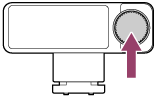
-
When you briefly press the button on the microphone status screen or receiver status screen, a cursor (orange frame) appears on the screen.
-
When an item or setting is selected, press the button to confirm.
-
On the microphone status screen, press and hold the button for 1 second to lock the screen.
Turn left/Turn right
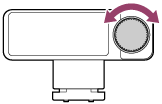
-
Turn the wheel to move the cursor on the screen or switch screens.
-
When selectable items are displayed vertically, turn the wheel to the right to select the item below, or to the left to select the item above.
ON/OFF (Power) button
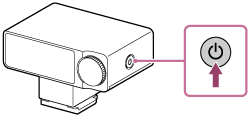
-
Briefly press the button to return to the previous screen.
-
Press and hold the button for 1 second to turn off the receiver.
-
Press and hold the button for 5 seconds to display the pairing screen.
For details, see “PAIRING.”
Touch screen operations
You can also operate the receiver by touching or swiping the screen.
-
Tap
Tap an item or setting to select or confirm it.
-
Swipe from right to left
Switches to the screen on the right.
-
Swipe from left to right
Switches to the screen on the left.
-
Swipe up or down
On the microphone status screen or the receiver status screen, swipe up from the bottom of the screen to display the control menu screen. In the control menu, swipe down from the top of the screen to return to the previous menu level.
When selectable items are displayed vertically, swipe up or down to scroll through the items.