


“Scent Canvas” App Home screen
The “Scent Canvas” App has two modes: Administrator Mode and User Mode. The content displayed on the Home screen changes depending on the mode.
Change the mode under  (Settings) — [Admin Mode].
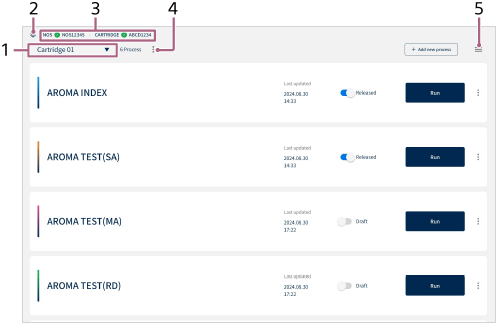
Administrator Mode Home screen
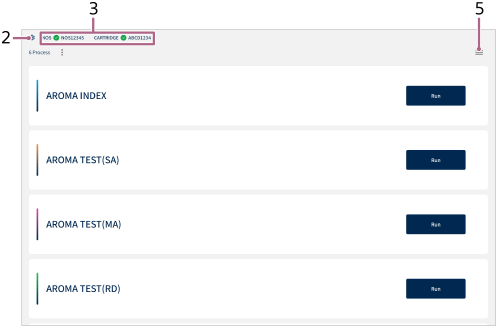
User Mode Home screen
- Cartridge name/cartridge selection ([Admin Mode] only)
The name of the installed cartridge is displayed.
When switching to a different cartridge, tap this area to select a cartridge from the displayed list.
-
 (Connection)
Use this icon when connecting the unit and tablet by Bluetooth communication.
- Connection status indicator
Displays the connection status of the unit and tablet and the cartridge installation status.
 (Green) indicates a status of connected/installed while
  (Red) indicates a status of not connected/not installed.
 - Number of processes
The number of processes created with the installed cartridge is displayed.
In Administrator Mode, this is the number of all created processes including draft processes.
In User Mode, it is only the number of processes that are set to [Released].
-
(Settings)
- Different items are displayed in Administrator Mode and User Mode.
- For the differences in authorization in Administrator Mode and User Mode, see “Switching between Administrator Mode/User Mode.”
To switch from Administrator Mode to User Mode (or vice versa)
Tap (Settings) to switch [Admin Mode]  (On/Off). When it is switched on, it is in Administrator Mode, and when switched off, it is in User Mode.
Note
- The screen images shown in this Help Guide may differ from the actual screens.