


Cartridge Settings
You can register, add, and edit cartridges.
Configure the cartridge settings in Administrator Mode.
- Tap
 (Settings) in the upper right part of the “Scent Canvas” app Home screen followed by the [Admin Mode]
  (On/Off) switch to turn Administrator Mode on.
 -
Tap [
 Cartridge Settings] under (Settings) in the upper right part of the Home screen.
The registered cartridges are displayed.
- Add a cartridge registration or edit a cartridge on the [Cartridge Settings] screen.
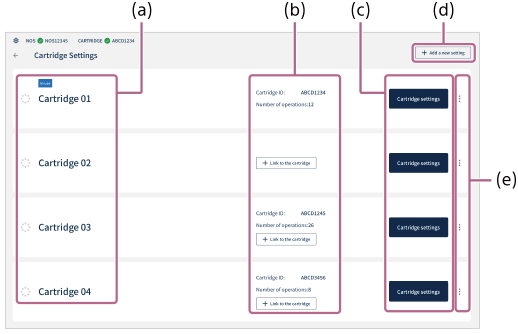
(a) Cartridge name: Cartridge names are displayed. The cartridge that is currently linked to the unit is displayed as [In use].
(b) Cartridge information: [Cartridge ID:] and [Number of operations:] (counted each time a process is executed) can be confirmed. To change the cartridge that is linked to the unit, replace the cartridge and tap [
 Link to the cartridge].
(c) Cartridge settings: Edit the cartridge registration details.
(d)
Add a new setting: Tap when adding a registration for a new cartridge.(e)
 (Menu): Duplicate or delete cartridge settings.
To newly register a cartridge
You can additionally purchase custom cartridges and use multiple custom cartridges for different purposes (maximum of 20).
When newly registering a cartridge, tap [ Add a new setting] in the upper right part of the [Cartridge Settings] screen and register the odorant information (refer to “Preparation Step 2: Configuring the initial settings with the “Scent Canvas” app”).
To copy and use the same cartridge setting on another tablet
If you want to copy and use the same cartridge setting on another tablet, migrate the data to the tablet as follows.
-
Export operation: While displaying the cartridge setting you want to copy, tap [Output CSV]. The CSV file will be saved in the “olfactory_info_yyyymmddhhmmss” folder. If images are registered in the cartridge setting, the image data will also be saved in the “pictures” folder.
Copy the entire “olfactory_info_yyyymmddhhmmss” folder to the tablet to which you want to migrate the data.
- Import operation: On the tablet to which you want to migrate the data, tap [Import CSV] on the [Cartridge Settings] screen. Then, select and import the CSV file in the “olfactory_info_yyyymmddhhmmss” folder that you have copied. If there are images in the folder, they will be imported simultaneously.