Migrating process data to another tablet
- On the tablet that has the process data you want to copy, tap
 (Settings) in the upper right part of the “Scent Canvas” app Home screen followed by the [Admin Mode]
  (On/Off) switch to turn Administrator Mode on.
 - Select a cartridge from the Cartridge Selection menu in the upper left part of the Home screen.
- Tap
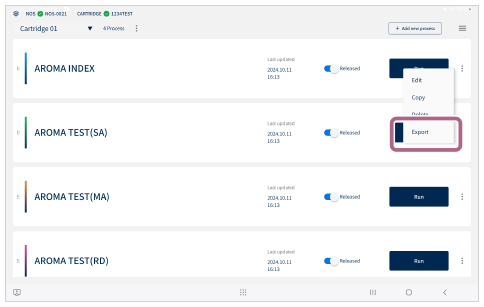
 (Menu) to the right of the process you want to migrate, and then tap [Export].
[The JSON was saved for the process.] will be displayed, and the JSON file will be saved to the “Download” folder.
- Connect the tablet to a computer, copy the JSON file saved in step 3 to any location on the computer, and then disconnect the tablet from the computer.
- Connect the tablet to which you want to import the process data to the computer and copy the JSON file that you saved on the computer in step 4 to the tablet.
- On the tablet to which you have copied the JSON file, launch the “Scent Canvas” app, and then tap (Settings) in the upper right part of the Home screen followed by the [Admin Mode] (On/Off) switch to turn Administrator Mode on.
-
Select the cartridge for which you want to import process data from the Cartridge Selection menu in the upper left part of the Home screen.
-
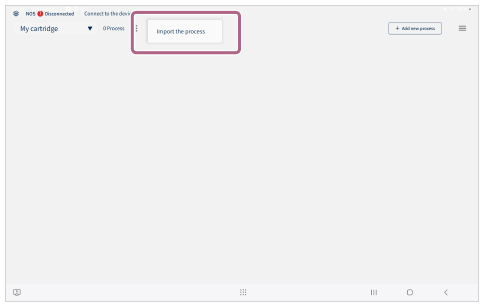
Tap (Menu) in the upper part of the screen, and then tap [Import the process] to select the JSON file that you copied in step 5.
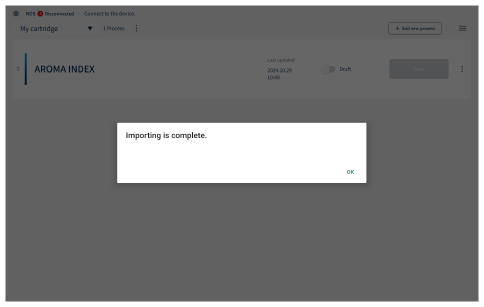
When [Importing is complete.] is displayed, the process migration is complete.