


Creating a [Preset (single)] process
- Tap
 (Settings) in the upper right part of the “Scent Canvas” app Home screen followed by the [Admin Mode]
  (On/Off) switch to turn Administrator Mode on.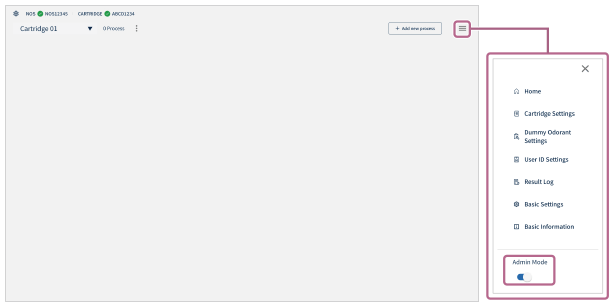
- Tap [
 Add new process] in the upper right part of the screen.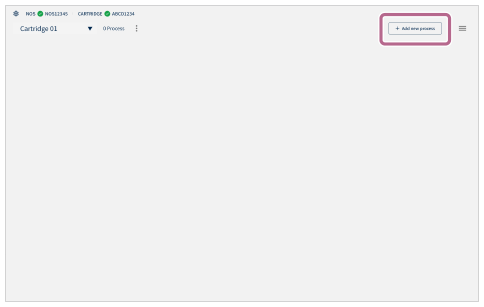
- Tap [Create] in the [Preset (single)] section of the [Process Creation] screen.
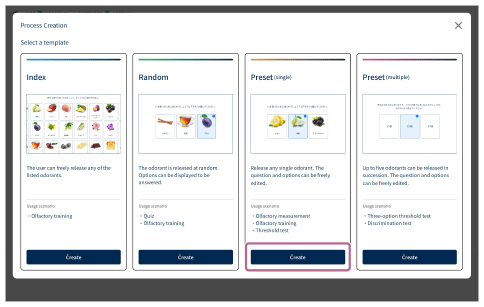
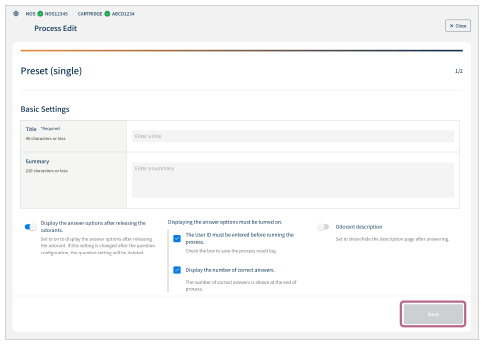
- Configure the basic process settings.
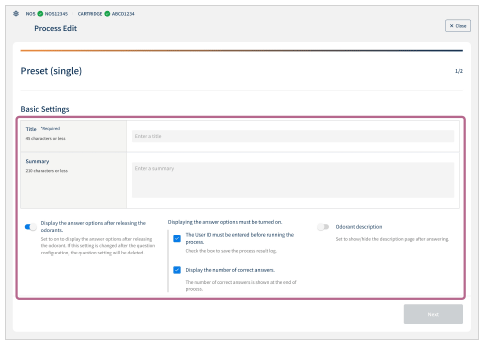
- Title (*Required): Enter the process title (maximum of 45 characters).
- Summary: Enter the process description (maximum of 210 characters).
-
Display the answer options after releasing the odorants.: Tap the
 (On/Off) switch to set whether to display the answer choices after the odorant release.
 - The User ID must be entered before running the process.: This option can be set if [Display the answer options after releasing the odorants.] is turned on. When the box is checked, ID entry is required before process execution, and the process result log can be verified after answering.
- Display the number of correct answers.: This option can be set if [Display the answer options after releasing the odorants.] is turned on. When the box is checked, the number of correct answers is displayed.
-
Odorant description: Set whether to display the explanation screen after answering. Tap the (On/Off) switch to set.
- Tap [Next].
- Tap [ Add a question].
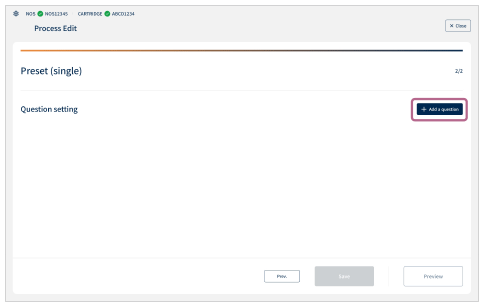
- Configure the process question settings.
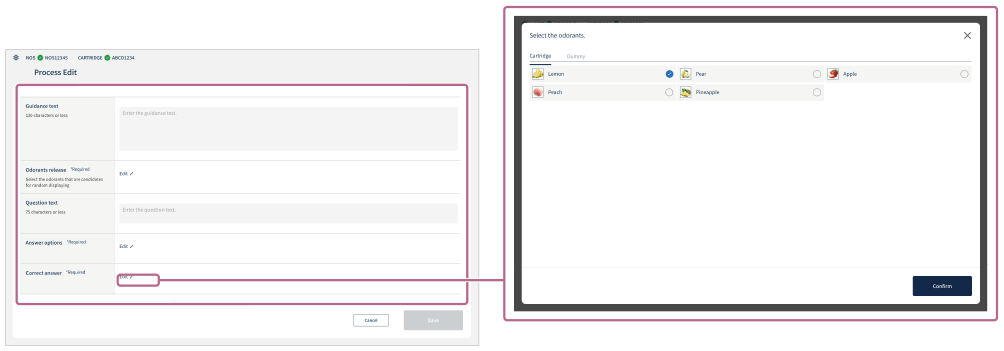
- Guidance text: Enter the operational guidance and other text (maximum of 120 characters).
-
Odorant release (*Required): Tap [Edit
 ] to set one odorant candidate to release.
 - Question text: Enter the question text (maximum of 75 characters).
-
Answer options (*Required): Tap [Edit] to display the choices screen for the answer. Switch between [Cartridge]/[Dummy] on the choices screen for the answer to set the choice candidates (maximum of 8).
[Dummy] can be set as answer choices that are not the actual odorants. To set dummy odorants, tap [Dummy Odorant Settings] under (Settings) in advance. -
Correct answer (*Required): Tap [Edit] to choose one item that becomes the answer on the [Cartridge] or [Dummy] screen.
- Tap [Save] to save the created content.
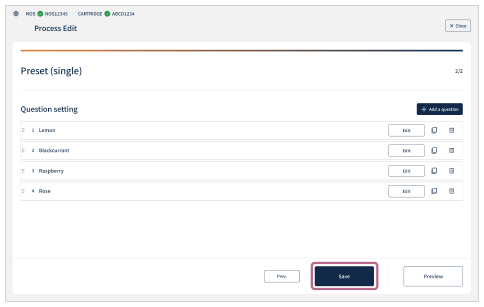
To change the order of the added questions or duplicate/delete questions
Long press and then drag and drop  (Change list order) on the left end of the [Question Setting] list to change the order of the questions.
Tap  (Duplicate) or
  (Delete) on the right end of the [Question Setting] list to duplicate or delete questions.
To stop the configuration in the middle
Tap [ Close] in the upper right part of the screen.
Please note that the created settings are not saved.
To check the operation of the created process
Tap [Preview] on the last page of the settings screen.
You can use the preview function to check the process operation and the screen transition. After checking the operation, tap the [ ] (Return) button in the upper left part of the screen to return to the settings screen and tap [Save] if there are no problems with the settings.
Odorants are not released in the preview function.