Migrating process data and various settings to another tablet in a batch operation
- On the tablet that has the process data you want to copy, tap
 (Settings) in the upper right part of the “Scent Canvas” app Home screen followed by the [Admin Mode]
  (On/Off) switch to turn Administrator Mode on.
 - Tap [
 Basic Settings] under (Settings) in the upper right part of the Home screen.
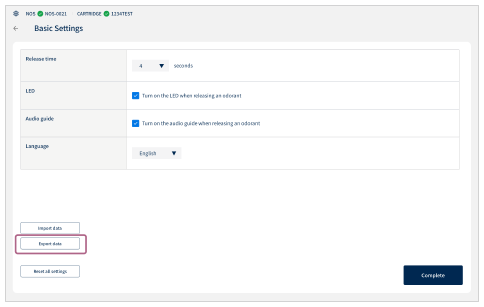
 - Tap [Export data].
- Tap to select the items you want to export, and then tap [Run].
[Exporting is complete.] will be displayed, and the JSON file will be saved to the following folder. If images are registered, the image data will also be saved in the “pictures” folder.
Download/NOS_Custom/export/custom_info_yyyymmddhhmmss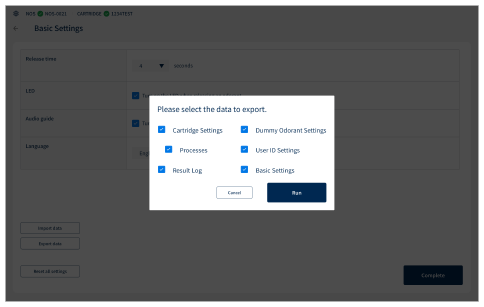
- Connect the tablet to a computer, copy the entire “custom_info_yyyymmddhhmmss” folder saved in step 4 to any location on the computer, and then disconnect the tablet from the computer.
- Connect the tablet to which you want to import the data to the computer and copy the entire “custom_info_yyyymmddhhmmss” folder that you saved on the computer in step 5 to the tablet.
- On the tablet to which you copied the JSON file, launch the “Scent Canvas” app, and then tap (Settings) in the upper right part of the Home screen followed by the [Admin Mode] (On/Off) switch to turn Administrator Mode on.
- Tap [ Basic Settings] under (Settings) in the upper right part of the Home screen.
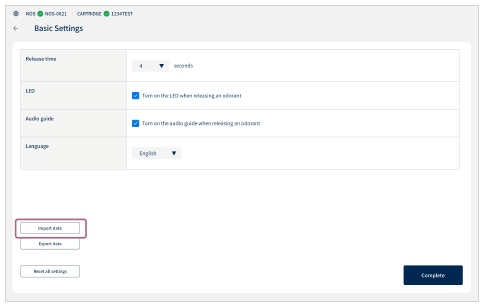
- Tap [Import data].
-
Confirm the caution message on the screen, and tap [Select file] to select the JSON file in the “custom_info_yyyymmddhhmmss” folder that you copied in step 6.
If there are images in the folder, they will be imported simultaneously.
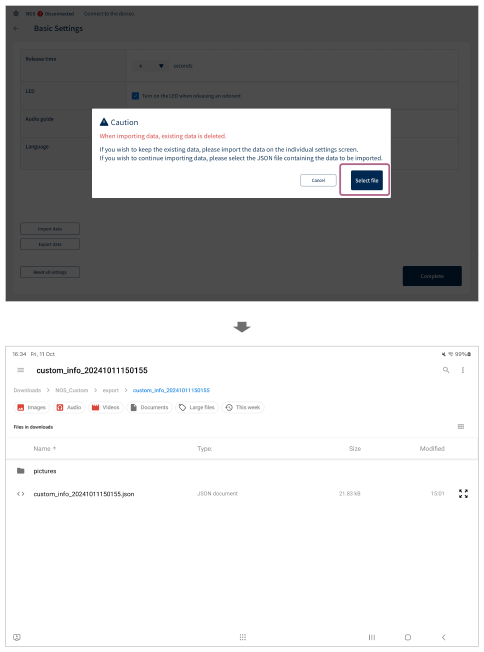
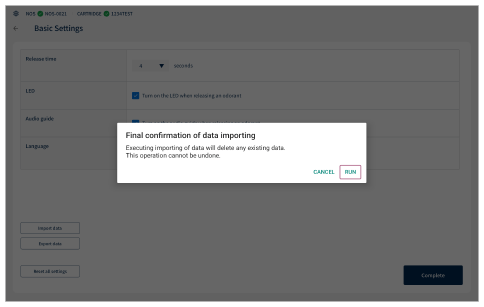
- Confirm the items to be imported on the confirmation screen and tap [Run].
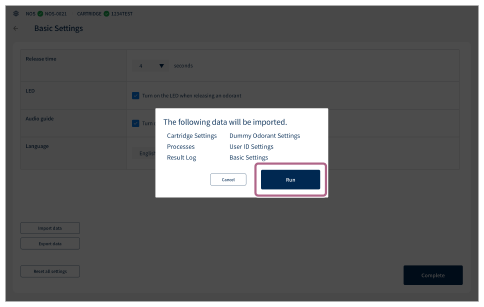
- Confirm the caution message on the final confirmation screen, and then tap [Run].
When [Importing is complete.] is displayed, migration of the data is complete.