


User ID Settings
Register a user.
Configure the user ID settings in Administrator Mode.
- Tap
 (Settings) in the upper right part of the “Scent Canvas” app Home screen followed by the [Admin Mode]
  (On/Off) switch to turn Administrator Mode on.
 - Tap [
 User ID Settings] under (Settings) in the upper right part of the Home screen.
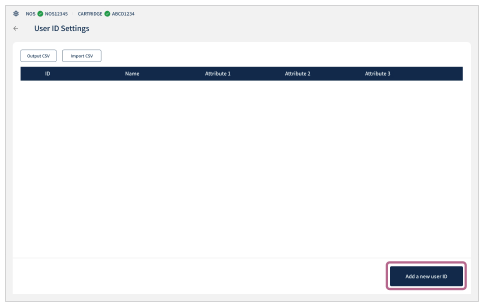
 - Tap [Add a new user ID] in the lower right part of the [User ID Settings] screen.
You can use a CSV-formatted file to batch register the user information. For details, see “Batch registering user information” below.
- Enter the ID, name, etc.
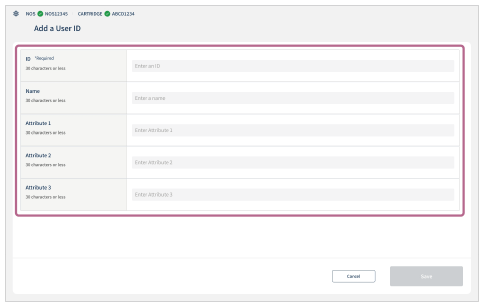
- ID (*Required): Set an ID for the user to be registered (maximum of 30 characters).
- Name: Register the user’s name (maximum of 30 characters).
- Attribute 1/Attribute 2/Attribute 3: Enter up to any three pieces of attribute information (maximum of 30 characters for each).
- Tap [Save].
- Repeat steps 3 through 5.
Batch registering user information
Tap [Output CSV] (a) to output the CSV file and edit it on a computer.
- userId (ID): Entry is required.
- userName (name): Entry is optional.
- userAttribute (attribute): Entry is optional.
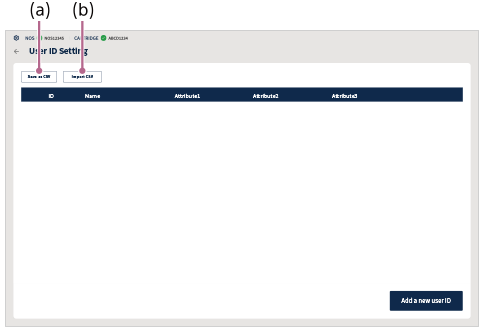
Perform the operation above when editing registered user information.
To copy and use the same [User ID Settings] on another tablet
If you want to copy and use the same [User ID Settings] on another tablet, migrate the data to the tablet as follows.
-
Export operation: While displaying the [User ID Settings] you want to copy, tap [Output CSV]. The CSV file “ID_registered_list_yyyymmddhhmmss.csv” will be saved in the directory under the “Download” folder.
Copy this CSV file to the tablet to which you want to migrate the data.
- Import operation: On the tablet to which you want to migrate the data, tap [Import CSV] on the [User ID Settings] screen. Then, select and import the CSV file that you have copied.
Note
- According to the CSV (Comma Separated Values) specifications, the comma (“,”) character cannot be used. If a comma (“,”) is entered, the “Scent Canvas” app will not correctly load the CSV file.
- If the information is overwritten during registration, the previously registered information is erased.