


Checking/Editing Event Properties
-
Select an event on the [Dashboard] screen and press the [Details] button.
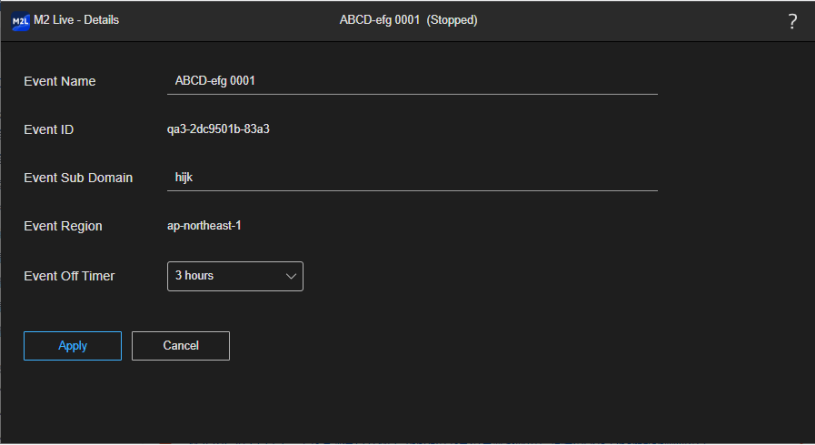
The [Details] screen appears in a separate tab and displays the properties of the selected event.
Hint
- The [Details] button is disabled when the status of the selected event is “Initializing.”
-
Check the properties of the event and edit as required.
Properties can be edited only when the selected event is in the “Stopped” state.
- [Event Name]: Displays the name of the event. You can select the name to rename the event.
- [Event ID]: Displays the ID of the event. Cannot be modified.
- [Event Sub Domain]: Displays the subdomain used for the server address for streaming input to this service. It is automatically configured by this service when creating an event, but it can be changed as required. To change the setting, press the value to select it and enter a new value.
Hint
- The [Connection Information] > [Address/Host] value in the input device settings on the [System Settings] screen will change based on the value set in [Event Sub Domain].
- A prefix is added to the subdomain. If [Event Sub Domain] is “aaa” and the prefix is “bbb”, then the [Address/Host] value becomes “bbb-aaa” when the prefix is added.
Note
- Only alphanumeric characters and hyphens can be used for the subdomain. In addition, a hyphen cannot be used as the first or last character for the subdomain.
- Enter 1 to 50 characters for the subdomain.
- Subdomains used by other events cannot be used.
- [Event Region]: Displays the region of the event. Cannot be modified.
- [Event Off Timer]: You can set whether to automatically stop an event, and set the time after starting to automatically stop the event.
-
When finished editing, press the [Apply] button.The changes are applied.
