


Structure of the [Dashboard] Screen
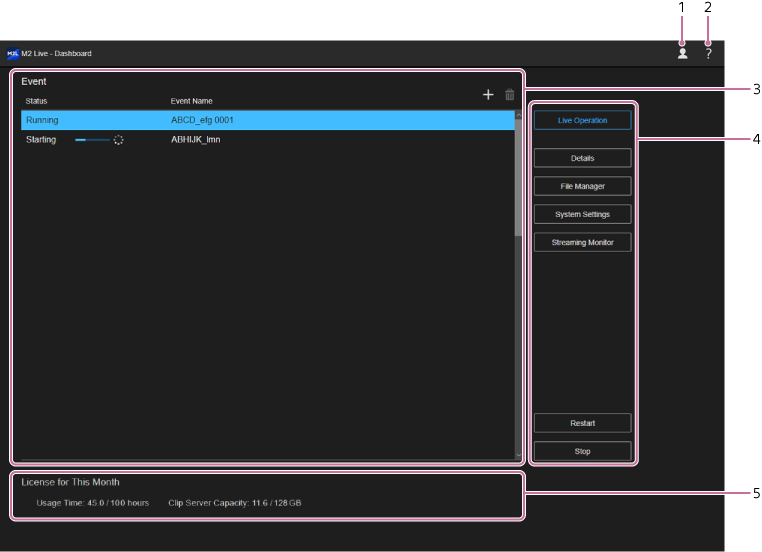
-
 (Account): Press the icon to display a drop-down list.
- [Preferences]: Use to change the operation method of this service. The following sub-items are available:
- [Shortcut Keys]: Press to display the [Shortcut Keys] screen in a separate tab. Use to configure shortcut keys for use with this service.
- [Accessibility Mode]: Press to enable/disable accessibility mode.
When accessibility mode is enabled, you can move items by pressing the directional keys displayed for each item when sorting items in a list on the [Live Operation] screen.
When accessibility mode is disabled, you can move items using drag & drop.
- [Privacy Policy]: Displays the user agreement and privacy policy.
- [Sign Out]: Select to sign out from this service.
- [Preferences]: Use to change the operation method of this service. The following sub-items are available:
-
 (Help Guide): Select to display this Help Guide.
 -
Event list: Displays the list of created events.
-
[Status]: Displays the status of each event.
- “Initializing”: Registering the event in this service.
- “Stopped”: Event is in the stopped state.
- “Starting”: Event is starting. A progress bar indicating the progress status is displayed.
- “Running”: Event is in the running state.
- “Stopping”: Event is stopping. A progress bar indicating the progress status is displayed.
- “Resetting”: Resetting a running or stopped event. A progress bar indicating the progress status is displayed.
- “Failed” (Resetting): Failed to run or stop the event. Stop the event and try the operation again.
- “Failed” (Initializing): Failed to register the event in this service. Delete the event and create the event again.
- [Event Name]: Displays the name of the event.
-
 (Create New): Use to create an event.
 -
 (Delete): Use to remove the event selected in the list.
-
[Status]: Displays the status of each event.
-
Operation buttons: Buttons for performing operations on the selected event in the list.
- [Live Operation] button: Use to initiate live operation for the event. The [Live Operation] screen will appear. Available when the event is in the “Running” state.
- [Details] button: Use to check/edit the properties of the event. The [Details] screen will appear in a separate tab.
- [File Manager] button: Use to manage the content (video clips or images) used in the event. The [File Manager] screen will appear in a separate tab.
- [System Settings] button: Use to configure the video input source and output destination devices used in the event and to configure this service. The [System Settings] screen will appear in a separate tab.
- [Streaming Monitor] button: Use to monitor the streaming status of the event. The [Streaming Monitor] screen will appear in a separate tab. Available when the event is in the “Running” state.
- [Restart] button: Use to restart the event.
- [Start]/[Stop] button: Use to start/stop the event. The label switches between [Start] and [Stop] according to the status of the event.
-
License information: Displays the usage time and data capacity for the subscription license.
When the remaining level falls below 20% or below 4 hours, (Caution) appears. When the usage level exceeds the upper limit,
  (Warning) appears.
- [Usage Time]: Displays “(Current monthly usage time) / (Available usage time).”
- [Clip Server Capacity]: Displays “(Used storage capacity) / (Available storage capacity).”
