


Configuring a Streaming Input Source
Configuration method
Select a row on the [Input] tab of the [System Settings] screen and configure each item in the [Input Settings] pane. When finished configuring items, press the [Apply] button to apply the settings.
Setup items
Set [Streaming Type] to the appropriate setting for the input source device. The setup items and the available selection options will vary depending on the [Streaming Type] setting.
When using [PXW-Z280/Z190]
Note
- If the setting is changed when both a camera is not connected and the event status is “Running” when using [PXW-Z280/Z190], the event will be restarted automatically. If streaming output or recording when a camera is not connected, the setting cannot be changed.
Use this option when the video input source is a PXW-Z280/Z190.
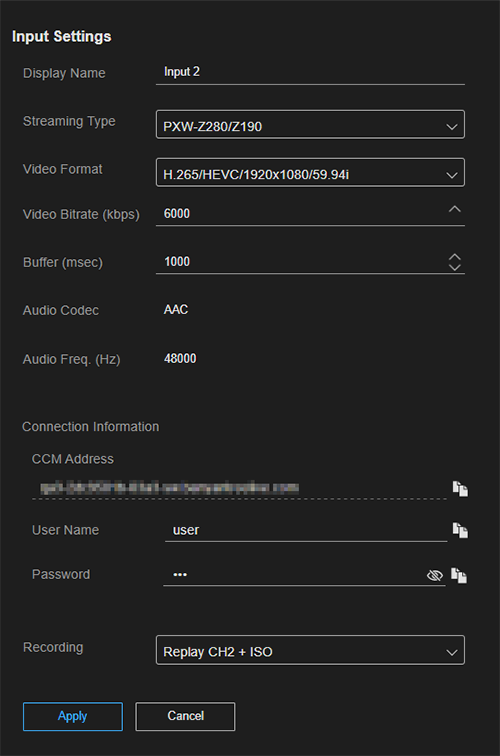
- [Display Name]: Enter an arbitrary name.
- [Streaming Type]* : Select [PXW-Z280/Z190].
- [Video Format]** : Select the video format from the list. When creating an event, the selection options will vary depending on the [Event Region] setting.
- [Video Bitrate (kbps)]: Set the video bit rate in the range 3000 to 12000.
- [Buffer (msec)]: Set the buffer size in the range 500 to 10000. The setting can also be changed on the [Live Operation] screen.
- [Audio Codec]: Displays the audio codec. Cannot be modified.
- [Audio Freq. (Hz)]: Displays the audio frequency. Cannot be modified.
-
[Connection Information]
- [CCM Address]: Displays the CCM address based on the subdomain set for the event. Cannot be modified on this screen. To change the subdomain, select the event on the [Dashboard] screen, press the [Details] button, and perform the operation on the [Details] screen. Set the same value on the PXW-Z280/Z190.
- [User Name]* : Set the user name. Set the same value on the PXW-Z280/Z190.
-
[Password]*
: Set the password. Press
 (Shown)/
 (Hidden) to show/hide the setting. Set the same value on the PXW-Z280/Z190.
-
[Recording]*
: To use the instant replay function, set one of [Replay CH 1 + ISO] to [Replay CH 3 + ISO] to assign a channel for internal recording.
You can also use this setting when you want to enable the ISO recording function for recording input content simultaneously when recording the output.
*Can be modified only when the event status is “Stopped.”
**Modifying the setting when the event status is “Running” will display a confirmation message and cause the event to be restarted automatically. Also cannot be modified while streaming output or recording is in progress.
When using [XDCAM pocket]
Note
- Modifying the setting when both a camera is not connected and the event status is “Running” when using [XDCAM pocket] will cause the event to be restarted automatically. If streaming output or recording when a camera is not connected, the setting cannot be changed.
Use this option when the video input source is XDCAM pocket.
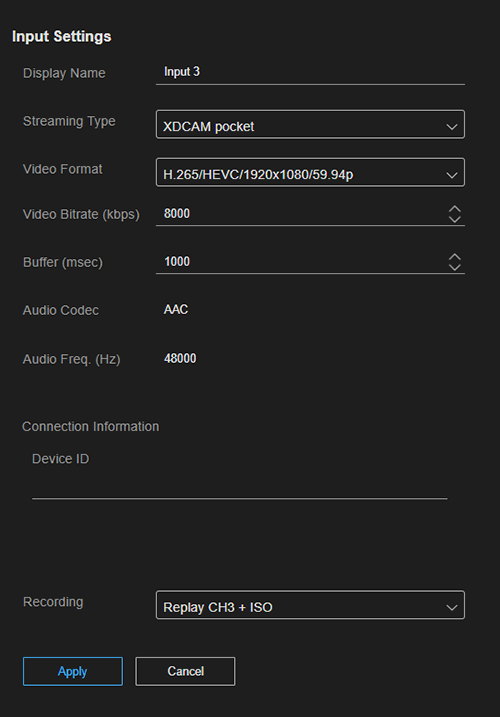
- [Display Name]: Enter an arbitrary name.
- [Streaming Type]* : Select [XDCAM pocket].
- [Video Format]** : Select the video format from the list. When creating an event, the selection options will vary depending on the [Event Region] setting.
- [Video Bitrate (kbps)]: Set the video bit rate in the range 3000 to 20000.
- [Buffer (msec)]: Set the buffer size in the range 100 to 10000. The setting can also be changed on the [Live Operation] screen.
- [Audio Codec]: Displays the audio codec. Cannot be modified.
- [Audio Freq. (Hz)]: Displays the audio frequency. Cannot be modified.
-
[Connection Information]
-
[Device ID]: Displays the device ID that uniquely identifies the XDCAM pocket app assigned as the input source. Blank if an XDCAM pocket app is not assigned.
When blank, select an event using XDCAM pocket and connect to the event input to assign XDCAM pocket as the input source. To cancel the XDCAM pocket assignment, delete the entry so that it is blank.
-
[Device ID]: Displays the device ID that uniquely identifies the XDCAM pocket app assigned as the input source. Blank if an XDCAM pocket app is not assigned.
-
[Recording]*
: To use the instant replay function, set one of [Replay CH 1 + ISO] to [Replay CH 3 + ISO] to assign a channel for internal recording.
You can also use this setting when you want to enable the ISO recording function for recording input content simultaneously when recording the output.
*Can be modified only when the event status is “Stopped.”
**Modifying the setting when the event status is “Running” will display a confirmation message and cause the event to be restarted automatically. Also cannot be modified while streaming output or recording is in progress.
When using [SRT]
Note
- This service supports SRT input with AES 256 encryption enabled when operating in Listener mode only. To use SRT input, set the SRT setting of the input source to Caller mode.
Use this option when the video input source is SRT.
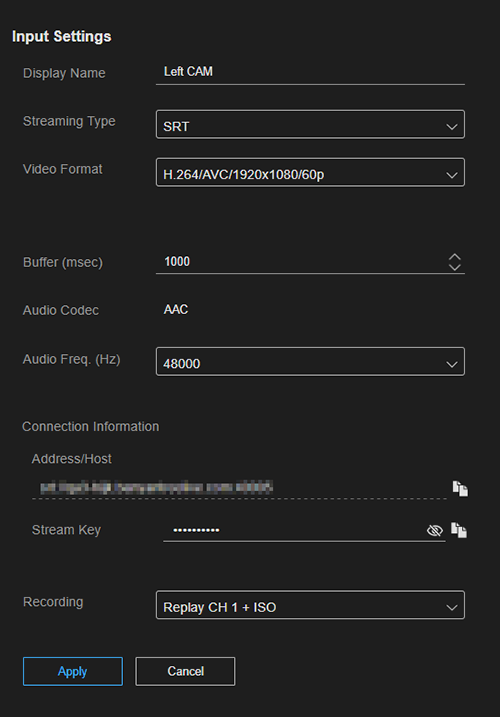
- [Display Name]: Enter an arbitrary name.
- [Streaming Type]* : Select [SRT].
- [Video Format]** : Select the video format from the list. When creating an event, the selection options will vary depending on the [Event Region] setting.
- [Buffer (msec)]: Set the buffer size in the range 0 to 10000. The setting can also be changed on the [Live Operation] screen.
- [Audio Codec]: Displays the audio codec. Cannot be modified.
- [Audio Freq. (Hz)]** : Select 44100 or 48000 for the audio frequency.
-
[Connection Information]
- [Address/Host]: Displays the address and host based on the subdomain set for the event. Cannot be modified on this screen. To change the subdomain, select the event on the [Dashboard] screen, press the [Details] button, and perform the operation on the [Details] screen. Set the same value for the input source.
-
[Stream Key]*
: Set a stream key of 10 or more characters. Press (Shown)/ (Hidden) to show/hide the setting.
Set the same value for the input source.
-
[Recording]*
: To use the instant replay function, set one of [Replay CH 1 + ISO] to [Replay CH 3 + ISO] to assign a channel for internal recording.
You can also use this setting when you want to enable the ISO recording function for recording input content simultaneously when recording the output.
*Can be modified only when the event status is “Stopped.”
**Modifying the setting when the event status is “Running” will display a confirmation message and cause the event to be restarted automatically. Also cannot be modified while streaming output or recording is in progress.
When using [RTMP] or [RTMPS]
Use this option when the video input source is RTMP/RTMPS.
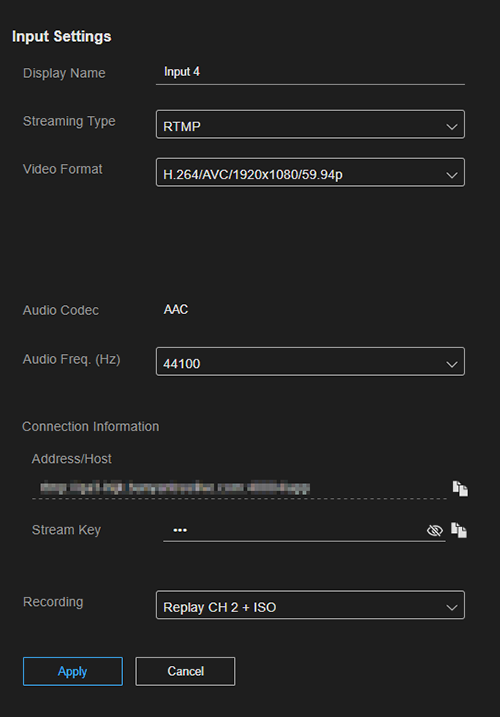
- [Display Name]: Enter an arbitrary name.
- [Streaming Type]* : Select [RTMP] or [RTMPS].
- [Video Format]** : Select the video format from the list.
- [Audio Codec]: Displays the audio codec. Cannot be modified.
- [Audio Freq. (Hz)]** : Select 44100 or 48000 for the audio frequency.
-
[Connection Information]
- [Address/Host]: Displays the address and host based on the subdomain set for the event. Cannot be modified on this screen. To change the subdomain, select the event on the [Dashboard] screen, press the [Details] button, and perform the operation on the [Details] screen. Set the same value for the input source.
-
[Stream Key]*
: Set a stream key of one or more characters. Press (Shown)/ (Hidden) to show/hide the setting.
Set the same value for the input source.
-
[Recording]*
: To use the instant replay function, set one of [Replay CH 1 + ISO] to [Replay CH 3 + ISO] to assign a channel for internal recording.
You can also use this setting when you want to enable the ISO recording function for recording input content simultaneously when recording the output.
*Can be modified only when the event status is “Stopped.”
**Modifying the setting when the event status is “Running” will display a confirmation message and cause the event to be restarted automatically. Also cannot be modified while streaming output or recording is in progress.
To cancel an input source assignment
Select the row for the assignment you want to cancel on the [Input] tab of the [System Settings] screen, and delete the [Streaming Type] setting so that it is blank. [Streaming Type] can be modified only when the event status is “Stopped.”
