


Tailoring Operations According to Desired Task
On the [Live Operation] screen, the size of the display area of each pane can be changed and functions can be switched for each user. This allows replay operators, commentators, and others to tailor the operating environment to suit their tasks.
Hint
- These preferences are stored for each user. This does not affect other users using the same event.
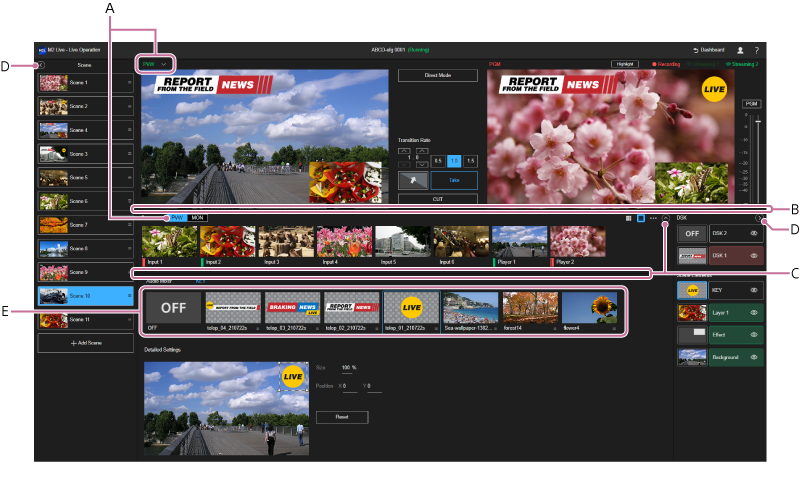
A: To operate and monitor without affecting the preview output
The use of a combination of the following two settings allows replay operators, commentators, and others to perform their required tasks and check the video without affecting the video that is actually output.
When [MON] is selected in the pull-down list on the top left of the [PVW] pane, the video selected in the [Source] pane can always be monitored. The output is not affected even if the preview output is switched.
When [MON] mode is selected using the mode selection button on the top left of the [Source] pane, selecting a video in the [Source] pane has no affect on the preview output and program output.
Usage example
Switcher operator
Select [PVW] mode in both the [PVW] pane and [Source] pane. The display in the [PVW] pane switches according to the selection in the [Source] pane.
Replay operator
Select [MON] mode in the [Source] pane. You can always display the [Replay] tab in the Edit/Control pane. For a switcher operator to check a replay in the preview output in the [PVW] pane, select [PVW] mode in the [PVW] pane.
Commentator
Select [MON] mode in both the [PVW] pane and [Source] pane. You can continuously monitor the required video.
Hint
- For users other than switcher operator, selecting [MON] mode in the [Source] pane is recommended. Incorrectly selecting video in the [Source] pane does not affect the output.
To change the size of the display area of each pane
B: To change the size of the display area of the monitor area
You can change the size of the display area of the monitor area ([PVW] pane/transition control pane/[PGM] pane) by dragging the border lines up/down in the monitor area and [Source] pane.
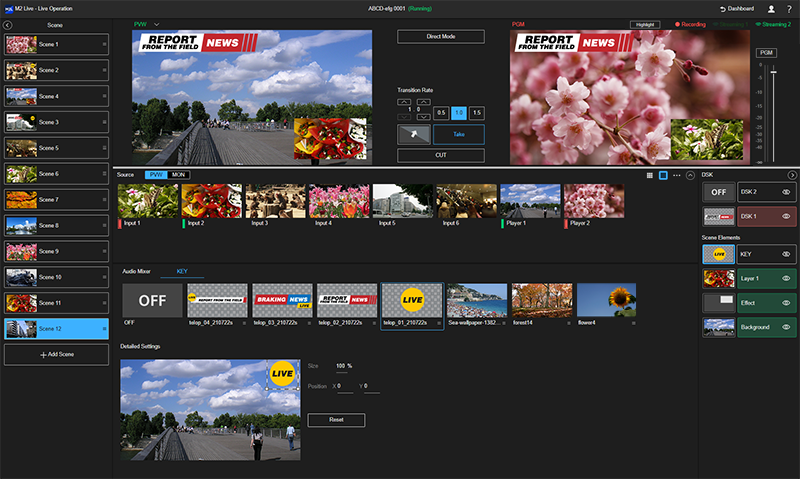
C: To change the size of the display area of the [Source] pane
You can change the size of the display are of the [Source] pane by dragging the border lines up/down in the [Source] pane and Edit/Control pane.
You can also change the size of the display area of the [Source] pane using  (Increase display area)/
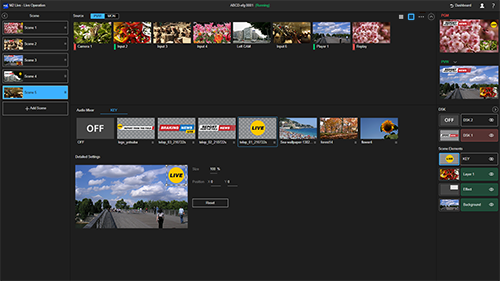
 (Decrease display area). Increasing the size of the display area of the [Source] pane decreases the size of the display area in the [PVW] pane and [PGM] pane, with part of the [PGM] pane and transition control pane hidden.
When only the size of the display area on the [Source] pane is increased
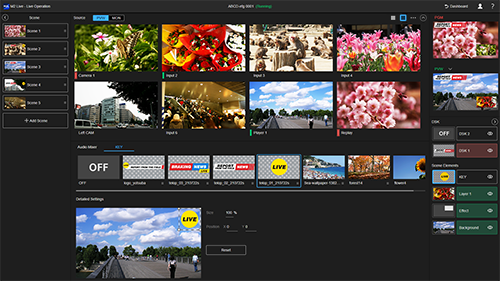
When the thumbnail display size on the [Source] pane is also increased
Hint
- To change the thumbnail display size on the [Source] pane, use
 (Large)/
 (Small).
D: To hide the [Scene] pane and [Layer] pane
Press  (Close) in the [Scene] pane or
  (Close) in the [Layer] pane to hide the pane in the bar along the edge of the screen. This allows you to increase the width of the monitor area, the [Source] pane, and Edit/Control pane.
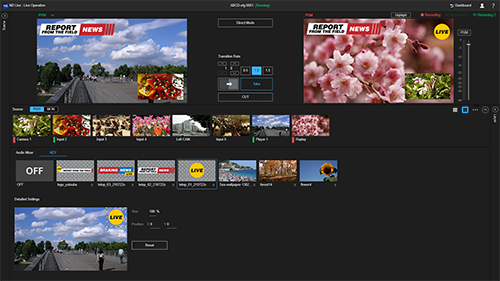
E: To change the display order of images
You can change the display order of images displayed on the [KEY] tab/[DSK] tab/[USK] tab in the Edit/Control pane. However, the position of [OFF] and [HTML5 Input] ([DSK] tab only) cannot be changed.
To change the display order of still images, drag & drop the  handle on the right of the image name or press the [Ctrl] + left/right arrow keys for the still image that has keyboard focus to move the still images.
