


Clip Player Operations
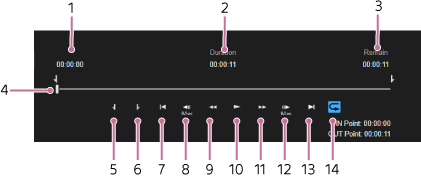
You can control playback of the video assigned to a clip player using the control buttons on the [Clip Player] tab in the Edit/Control pane. The duration, current playback position, and remaining time of a video, and a progress bar are also displayed.
The function of each part is described below.
- Playback position indicator: Displays the current playback position.
- [Duration]: Displays the duration between the IN point and OUT point.
- [Remain]: Displays the remaining time until the OUT point.
- Slider bar: Displays the playback position of the clip. You can select any position along the slider bar or you can move the slider using drag-and-drop to move to any position in the clip. Also,
 (IN point) is displayed at the IN point, and
  (OUT point) is displayed at the OUT point.
 - IN point set button: Sets the IN point at the current playback position. The configured IN point is stored when saving the scene. The IN point is automatically cued up when the saved scene is recalled.
- OUT point set button: Sets the OUT point at the current playback position. The configured OUT point is stored when saving the scene. The clip playback will stop at the OUT point.
- Jump to start position button: Jumps to the start of the clip or the IN point. If the current playback position is after the IN point, it jumps to the IN point. If the playback position is before the IN point, it jumps to the start of the clip.
- Jump to previous frame button: Jumps back from the current playback position by approximately 0.1 seconds.
- Fast reverse: Rewinds the video. If you press the button again during fast reverse, the fast reverse speed changes in the order of 1× speed → 5× speed → 10× speed. The speed is displayed above the button.
- Play/stop button: Plays/stops the video.
 (Stop) is displayed during playback, and
  (Play) is displayed when stopped.
 - Fast forward: Fast forwards the video. If you press the button again during fast forward, the fast forward speed changes in the order of 2× speed → 5× speed → 10× speed. The speed is displayed above the button.
- Jump to next frame button: Jumps forward from the current playback position by approximately 0.1 seconds.
- Jump to end position button: Jumps to the end of the clip or the OUT point. If the current playback position is before the OUT point, it jumps to the OUT point. If the playback position is after the OUT point, it jumps to the end of the clip.
- Loop playback button: Enables/disables loop playback. The button is lit when enabled, and repeated playback between the IN point and OUT point continues until stopped manually. The loop playback function cannot be used during fast forward/reverse.
