


Setting a DSK
A DSK composites an image directly on the upper-most layer of the program output video. You can configure a total of two images, one each for the [DSK 1] and [DSK 2] layers. Compositing input from an external graphics system is also supported.
In the [Layer] pane, you can switch the show/hide state for the program output (transition effects cannot be applied).
To set an image in a DSK, the image must be uploaded to this service using the [File Manager] screen or an external graphics system must be configured beforehand.
-
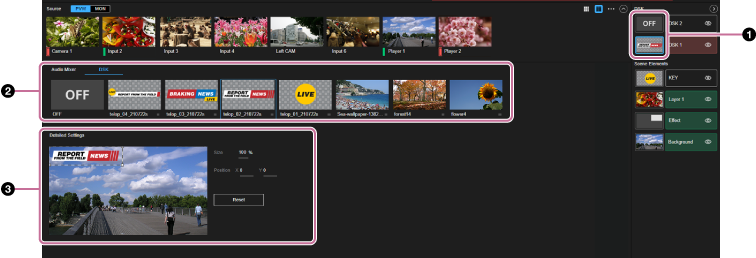
Select the thumbnail for the [DSK 1] or [DSK 2] layer in the [Layer] pane.The [DSK] tab and its setup items are displayed in the Edit/Control pane.
-
Select the image to set in the DSK from the images uploaded to this service or the input from an external graphics system.
When an external graphics system is configured, [HTML5 Input] is displayed as the name.
If the layer selected in step 1 is being displayed in the output video, the image composited against the background video is displayed in both the [PVW] pane and [PGM] pane.
Hint
- When [OFF] is selected, the image assignment is released. If the layer selected in step 1 is being displayed in the output video, it will be hidden.
-
Make adjustments to the DSK image as required.For details about adjustment, see “Adjusting Composited Content.”
Hint
- When an external graphics system is selected as the DSK image, the size and position of the image cannot be adjusted using this service. Adjust the image on the external graphics system side.
