


Setting a USK
A USK always composites an image against the background video. One image content can be configured for each of six input videos, [Player 1], and [Player 2] (or [Replay]).
Image content configured for a USK is always displayed while the video source is displayed on the [Background] layer. Unlike other compositing, a USK is associated with the [Background] layer, so it is not possible to switch the show/hide state for the output video easily.
To set an image in the USK, the image must be uploaded to this service using the [File Manager] screen beforehand.
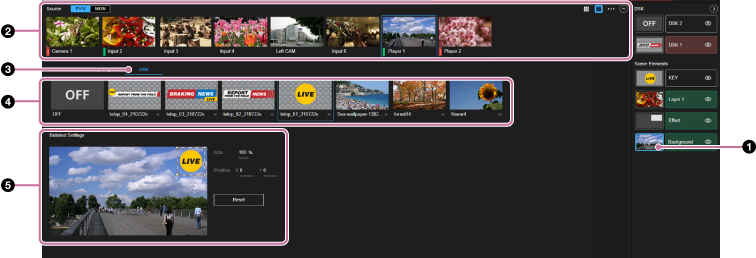
-
Select the thumbnail for the [Background] layer in the [Layer] pane.
-
Select the thumbnail for the video source you want to associate with the USK in the [Source] pane.
-
Select the [USK] tab in the Edit/Control pane.The [USK] tab setup items are displayed.
-
Select the image to set in the USK from the images uploaded to this service.
The selected image is composited on the background video and is displayed in the [PVW] pane. The composited USK image is not displayed in the video in the [Source] pane.
Hint
- When [OFF] is selected, the image assignment is released and the USK is hidden.
-
Make adjustments to the USK image as required.For details about adjustment, see “Adjusting Composited Content.”
