


Switching Using the Cut Effect
Hint
- This topic describes a background video only transition as an example. If you want to include other layers in a transition, change the settings and show/hide status of each layer and then execute a transition.
-
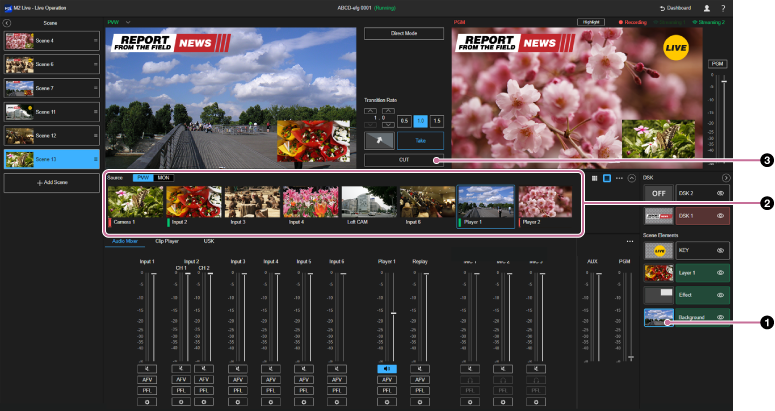
Select the thumbnail for the [Background] layer in the [Layer] pane.The [Background] layer is selected.
-
Press the thumbnail for the video source you want to set for preview output in the [Source] pane.The selected video source is displayed as the background video in the [PVW] pane.
-
Select the [CUT] button in the transition control pane at the instant you want to execute a transition.A transition is executed using the cut effect and the video in the [PGM] pane is switched to the same video in the [PVW] pane.
Hint
- When a transition is executed using the [CUT] button, the transition uses the simple cut effect. No animations for transitions will be composited even if the clip transition function is enabled.
If you want to execute a transition using the cut effect composited with an animation for transition, use the [Take] button.
