


Audio Commentary Function
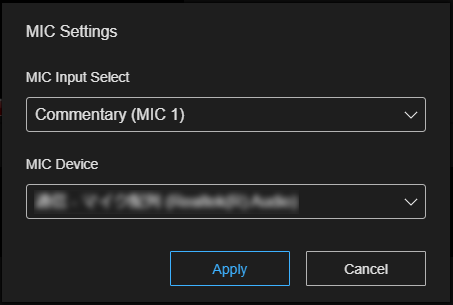
You can assign the microphone of the computer used to operate this service for audio commentary use for [MIC 1] to [MIC 3].
Hint
- The [MIC Settings] dialog settings are stored for each user. This does not affect other users using the same event.
To assign a microphone
Specify the microphone to use for audio commentary using the [MIC Settings] dialog.
Click  (Options) at the top right of the [Audio Mixer] tab and select [MIC Settings] to display the [MIC Settings] dialog.
In the [MIC Settings] dialog, select the channel to use in the [MIC Input Select] list and select the microphone to assign in the [MIC Device] list. Press the [Apply] button to close the [MIC Settings] dialog. The [Audio Mixer] tab switches to a state for operating only the selected microphone (however, volume fader operation is not available).
Hint
- When [Display Name] is configured for each audio input on the [Audio Input] tab of the [System Settings] screen, the name is also displayed in the [MIC Input Select] list. Naming each audio input using [Display Name] is recommended so that commentary personnel know to which channel the microphone should be assigned.
To release a microphone assignment
Select [Not Assigned] in the [MIC Input Select] list in the [MIC Settings] dialog and press the [Apply] button. The [MIC Settings] dialog closes and the [Audio Mixer] tab switches back to the state where audio for all channels can be adjusted (however,  (audio monitor on)/
 (audio monitor off) is not available).
Hint
- The microphone assignment can also be released using the [Clear] button on the [Audio Input] tab of the [System Settings] screen. If microphones are assigned to each audio input, you can release the assignment by pressing the [Clear] button in the corresponding row. When you cannot release a microphone assignment in the [MIC Settings] dialog or when a person other than the user of the microphone (such as the director) wants to change the microphone assignment, release the assignment on the [System Settings] screen.
To remove the audio of your microphone from the monitor target
You can select whether to monitor the audio from your microphone using (audio monitor on)/ (audio monitor off) on the [Audio Mixer] tab. The default setting is to monitor the audio. If the audio is difficult to hear when monitoring the microphone you are using, for example because of a delay, turn monitoring off.
