


Assigning Video to a Clip Player
You can assign a video clip to a clip player ([Player 1] and [Player 2]) in the [Source] pane. Only video clips that have been uploaded or recorded to the event beforehand can be assigned.
Note
- Content for use in a clip player comprises the video clips displayed on the [Clip] tab of the [File Manager] screen. To use a recorded output or input content file, execute [Copy to Clip Folder] on the [Recording] tab to copy it to the [Clip] tab.
- When the instant replay function is enabled, [Player 2] is replaced by [Replay], which is used for instant replay. Video clips can be assigned to [Player 1] only.
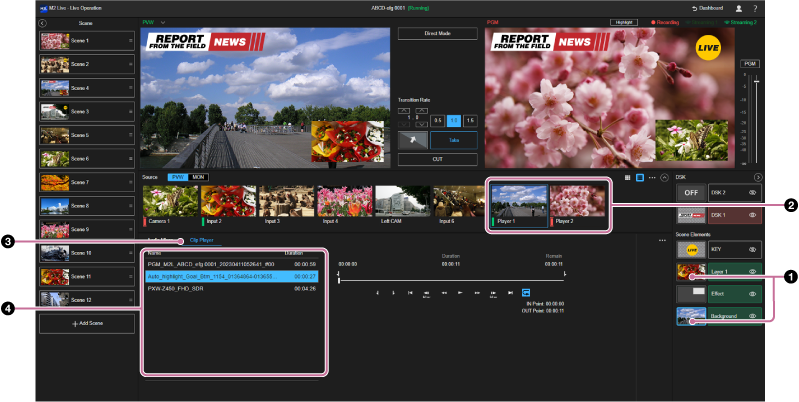
-
Select the thumbnail for the [Background] layer or [Layer 1] layer in the [Layer] pane.
Hint
- The [Layer 1] layer is displayed only when a preset is selected on the [Effect] layer.
-
Select [Player 1] or [Player 2] in the [Source] pane.
-
Select the [Clip Player] tab in the Edit/Control pane.The [Clip Player] tab setup items are displayed.
-
Select the video to assign from the list of video clips.The selected video is assigned to the clip player and the selected video is displayed on the [Player 1] or [Player 2] thumbnail in the [Source] pane.
You can monitor the operation and playback position of the selected video clip on the [Clip Player] tab.
