


Adjusting the Input Audio
You can press the  (Adjust) button on the [Audio Mixer] tab to switch from the [Audio Mixer] tab to the settings screen and adjust the audio for the corresponding input channel. The items that can be adjusted vary depending on the input content, clip player (or [Replay]), and audio channel for audio commentary. When finished adjusting items, press the [Apply] button to apply the adjustments.
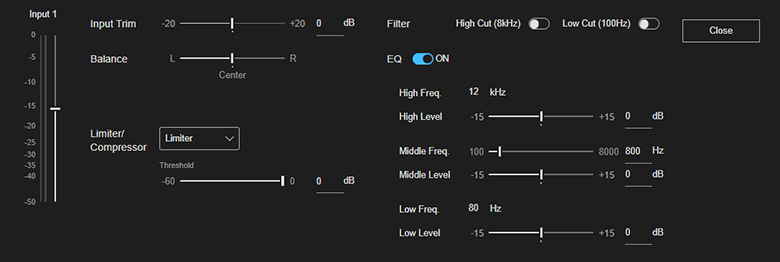
Setup items
[Input Trim]
Adjusts the input level in the range −20 dB to 20 dB.
Hint
- Adjust the level so that the volume is at an appropriate level when the volume fader is at the 0 dB position (top).
[Balance] ([PAN] for input content with [2CH Mono] enabled)
Sets the position [L] – [Center] – [R] within a stereo pair where the input audio is localized.
Hint
- For input content with [2CH Mono] enabled, you can output both [CH1] and [CH2] on both stereo channels by setting [PAN] to [Center] for both [CH1] and [CH2]..
[Delay] (audio channel for audio commentary only)
Sets the delay in the range 0 msec to 2000 msec for the audio channel used for audio commentary. Use this to synchronize the audio channel for audio commentary with the input audio of other channels.
[Limiter/Compressor]
Use when inputting audio signals with large differential in level. Select [Limiter] or [Compressor] from the list and set [Threshold] in the range −60 dB to 0 dB.
Hint
- Select [Limiter] if you want to suppress peak components and prevent excessive output, or select [Compressor] if you want to compress and average sounds above a certain level.
- The following values cannot be adjusted using this service (fixed values).
- Ratio: ∞:1 when [Limiter] is selected, 2:1 when [Compressor] is selected
- Attack time: 1.5 msec when [Limiter] is selected, 10 msec when [Compressor] is selected
- Release time: 25 msec when [Limiter] is selected, 100 msec when [Compressor] is selected
[Filter]
Enable when you want to reduce the volume at high frequencies and/or low frequencies. Use this to suppress noise.
When [High Cut (8kHz)] is enabled, high frequencies (8 kHz and higher) are cut. When [Low Cut (100Hz)] is enabled, low frequencies (100 Hz and lower) are cut. The cutoff characteristics for both are 12 dB/oct.
[EQ]
You can adjust the volume by adjusting the levels independently for high frequencies, mid frequencies, and low frequencies.
To adjust, enable [EQ] and set values for the following items.
- [High Freq.]: Displays the frequency of the high-frequency band. This is set to [12 kHz] (fixed) and cannot be modified.
- [High Level]: Adjust the level of the high-frequency band in the range −15 dB to 15 dB.
- [Middle Freq.]: Sets the center frequency of the mid-frequency band in the range 100 Hz to 8000 Hz.
- [Middle Level]: Adjust the level of the mid-frequency band in the range −15 dB to 15 dB.
- [Low Freq.]: Displays the frequency of the low-frequency band. This is set to [80 Hz] (fixed) and cannot be modified.
- [Low Level]: Adjust the level of the low-frequency band in the range −15 dB to 15 dB.
