


Adjusting the Audio
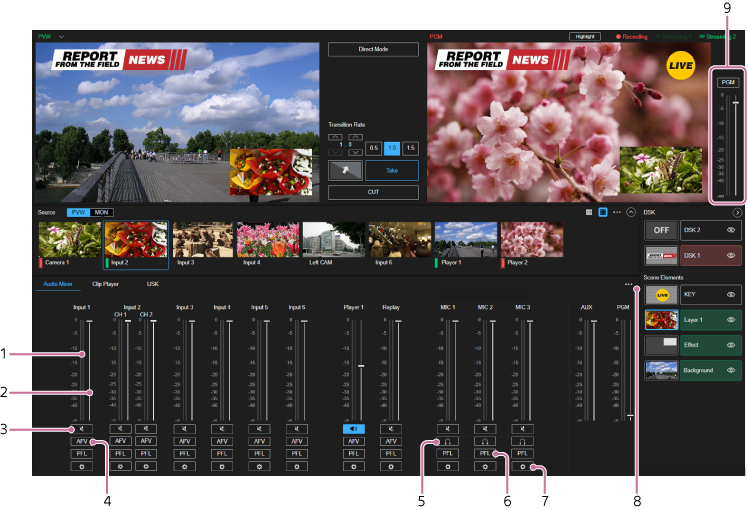
You can adjust the volume and check the audio level of each input on the [Audio Mixer] tab in the Edit/Control pane.
Also, if a source with audio is selected in the [Source] pane, you can also adjust the volume and monitor the audio level for that source on other tabs (excluding the [USK] tab).
You can adjust the volume and monitor the audio level of the program output and AUX output in the audio adjustment pane of the [PGM] pane.
Hint
- The AUX output in this service refers to the program output without the audio commentary microphone audio.
- Audio level meter: Displays the left/right audio levels.
- Volume fader: Adjust the volume by dragging the fader bar.
-
 (Audio on)/
 (Audio off): Press to toggle the audio channel on/off.
 -
[AFV] (Audio Follow Video) button: When you press the button, the button lights up and the audio of the linked video is output. When the video is the program output, the audio is output. When the program output is switched to another video, the audio automatically switches to the muted state. When the button is not lit, the audio is output according to the (Audio on)/ (Audio off) setting.
-
 (audio monitor on)/
 (audio monitor off) (audio channels for audio commentary only): Each time the button is pressed, microphone audio monitoring switches between enabled and disabled. If the audio is difficult to hear when monitoring the microphone you are using, for example because of a delay, you can turn monitoring off. Only the button for the microphone you are using is available.
Hint
- The audio monitoring on/off preferences are stored for each user. This does not affect other users using the same event.
-
[PFL] (Pre-Fader Listen) button: You can monitor the audio for only the corresponding channel while the button is pressed. It does not affect the program output or AUX output.
Note
- When adjustment is performed using
 (Adjust), the settings of items other than [Trim] and [Delay] are not applied to the monitor audio.
- When adjustment is performed using
-
(Adjust): Displays the settings screen for adjusting each channel.
-
 (Options):
- [Input Settings]: Select to display the [Input Settings] dialog. If different audio is input on the two channels of stereo input content, the two channels can be handled and used as separate monaural content. The volume can be adjusted separately on [CH 1] and [CH 2] for input devices with [2CH Mono] selected in the [Input Settings] dialog.
- [MIC Settings]: Select to display the [MIC Settings] dialog. Use when you want to assign a microphone for audio commentary use.
-
[PGM]/[AUX] button: Each time you press the button, the monitor target switches between the program output and AUX output.
Hint
- The monitor target setting is stored for each user. This does not affect other users using the same event.
