Adjusting the Angle and Position of the LCD Monitor
Adjusting the position of the LCD monitor
Tilt the LCD monitor arm (B) forward/rearward/left/right to adjust the viewing position.
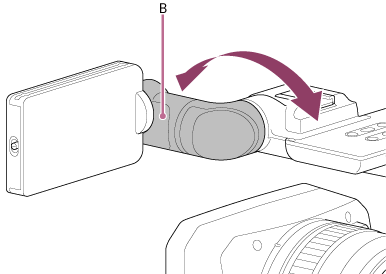
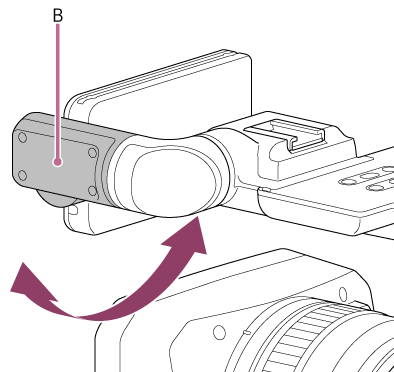
You can adjust the angle and position of the LCD monitor to make viewing easier.
Adjusting the angle of the LCD monitor
Tilt the LCD monitor (A) up/down to adjust the viewing angle.
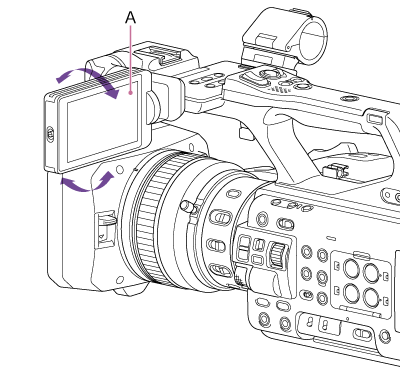
Inverting the screen display
You can flip the camera image left/right or up/down/left/right using the L/R / ROTATE switch (C).
Used to rotate the LCD monitor 180° towards the lens for operation.
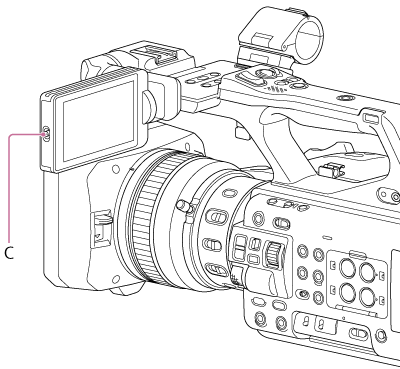
| L/R / ROTATE switch | Description |
|---|---|
| OFF | Do not invert the camera image. |
| L/R | Invert the camera image left/right. |
| ROTATE | Invert the camera image up/down/left/right. |
LCD monitor orientation examples
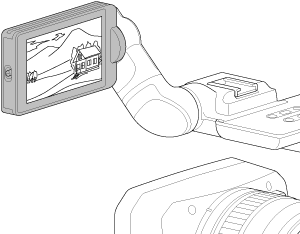
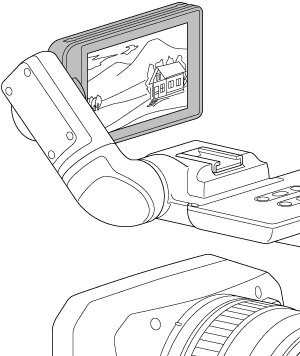
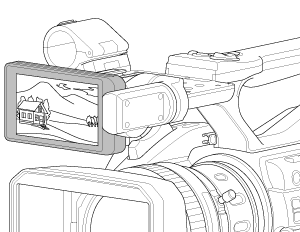
You can move the LCD monitor to various orientations as shown below by adjusting the angle and position, and inverting the screen display.
| LCD monitor orientation | Description |
|---|---|
|
LCD monitor facing in the opposite direction of the lens (switch: OFF)
|
This display orientation is suitable for normal shooting. |
|
LCD monitor in center of camera facing opposite direction of lens (switch: ROTATE)
|
|
|
LCD monitor in center of camera facing the same direction as the lens (switch: L/R)
|
This display orientation is suitable when shooting yourself. The captured image is displayed flipped horizontally, but the playback image is not flipped. |