


Checking the Network Connection Status
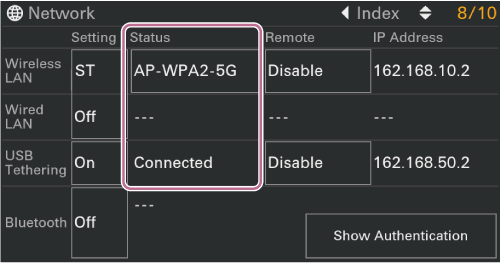
Press the NETWORK button to display the [Network] status screen.
You can check the status of each network connection.
Hint
- To enable remote operation, set [Remote] to [Enable] for the corresponding connection. If not using remote operation, it is recommended that the connection be set to [Disable] to prevent unintended operation.
Wireless LAN using access point mode (AP)
| Status display | Possible cause | Solution |
|---|---|---|
| [Non Active] | (Mid status transition) | Processing. Wait a moment. |
| (SSID name) | Waiting for a mobile device connection. | Tap the SSID name to display the SSID and password of the unit. Set the wireless LAN function of the mobile device. |
| [Connected] | Mobile device is connected. | Multiple devices cannot be connected. |
| [IP Address Error] | Devices assigned with the same IP address are on the network. | There is an IP address conflict. Check the network settings. |
Wireless LAN using station mode (ST)
| Status display | Possible cause | Solution |
|---|---|---|
| [Non Active] | (Mid status transition) | Processing. Wait a moment. |
| [Disconnected] | An access point to connect to is not selected. | Tap [Disconnected] and select a connection destination from the access point list. |
| [Searching] | Searching for a previously connected access point. | To change the connection destination, tap [Searching] and select a connection destination from the access point list. |
| [Connecting] |
|
Check the following.
|
| (SSID name) | (Operating normally) | The unit is connected to the displayed access point. |
| [IP Address Error] | Devices assigned with the same IP address are on the network. | There is an IP address conflict. Check the network settings. |
Wired LAN
| Status display | Possible cause | Solution |
|---|---|---|
| [Non Active] | (Mid status transition) | Processing. Wait a moment. |
| [Disconnected] |
|
Check the following.
|
| [Connecting] |
|
If there is no change after a short wait, check that the network DHCP server is enabled. |
| [Connected] | (Operating normally) | The unit is operating normally. |
| [IP Address Error] | Devices assigned with the same IP address are on the network. | There is an IP address conflict. Check the network settings. |
USB tethering
| Status display | Possible cause | Solution |
|---|---|---|
| [Non Active] | (Mid status transition) | Processing. Wait a moment. |
| [No Device] | USB cable is unplugged. |
Check the following.
|
| [Unsp. Cnct. Dev.] |
|
Check that USB tethering on the other device is turned on. USB hubs cannot be used. |
| [Disconnected] | (Mid status transition) | Processing. Wait a moment. |
| [Connecting] |
|
Check the following.
If there is no DHCP server, set the IP address manually. |
| [Connected] | (Operating normally) | The unit is operating normally. |
| [IP Address Error] | Devices assigned with the same IP address are on the network. | There is an IP address conflict. Check the network settings. |
TP1002078181