


Configuring AFV (Audio Follow Video)
When the [AFV] button is pressed and the AFV function is enabled, the audio linked with a video is output when the program output is switched to that video. When the program output is switched to another video, the audio automatically switches to the muted state.
Configuration method
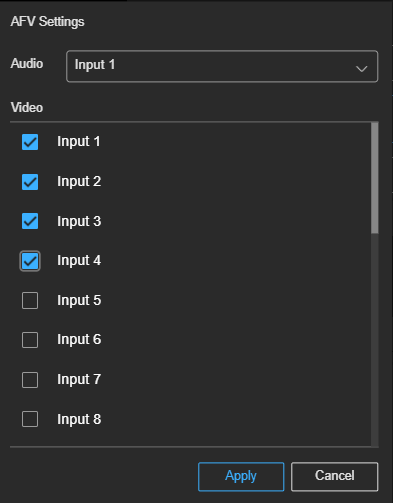
Configure the link between the video and audio in the [AFV Settings] dialog.
Click  (Options) at the top right of the [Audio Mixer] tab and select [AFV Settings] to display the [AFV Settings] dialog.
In the [AFV Settings] dialog, select the audio from the [Audio] pull-down list and place a check mark beside the video you want to link with that audio in [Video]. You can also link a single audio with multiple videos.
If you do not want to use the audio selected in [Audio] with the program output, clear the check marks for all videos in [Video] or disable the AFV function by turning off the [AFV] button so that it is not lit for that audio on the [Live Operation] screen.
