


Structure of the [Replay] Tab
-
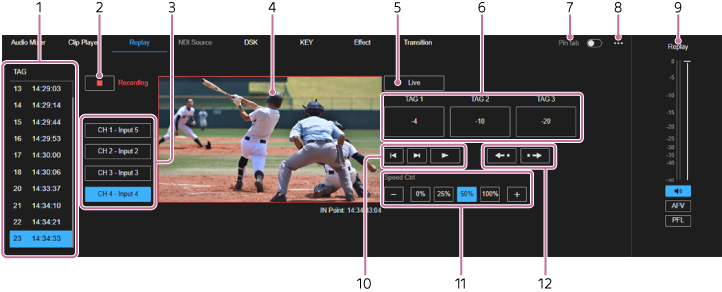
[TAG] list: Displays the TAG (IN points) list configured for videos on instant replay channels. Click an IN point in the list to cue up that IN point.
Hint
- Up to 300 IN points can be configured for each instant replay channel. If you attempt to configure an IN point that exceeds this limit, the oldest IN point is overwritten.
- To delete an IN point, right-click the IN point you want to delete in the [TAG] list, and delete it using the displayed context menu. When starting operation, it is recommended that you delete all previously configured IN points using [Delete All].
-
 (Start recording)/
 (Stop recording)
: Press (Start recording) to start internal recording for instant replay. During recording, the button changes to (Stop recording) and “Recording” is displayed on the right side. Various operations are also enabled for instant replay. Press (Stop recording) to stop recording.
(Stop recording)
: Press (Start recording) to start internal recording for instant replay. During recording, the button changes to (Stop recording) and “Recording” is displayed on the right side. Various operations are also enabled for instant replay. Press (Stop recording) to stop recording.Note
- Internal recording for instant replay is available only when [SDR/8bit/BT.709] is selected in [SDR/HDR] on the [System] tab of the [System Settings] screen. (Start recording) is disabled for all settings except the above.
- During ISO recording, (Stop recording) is disabled.
- To start ISO recording, press the [Start] button in the [Recording] column on the [Output] tab of the [System Settings] screen. Internal recording for instant replay starts at the same time.
- Internal recording for instant replay is available only when [SDR/8bit/BT.709] is selected in [SDR/HDR] on the [System] tab of the [System Settings] screen.
- Channel selection buttons: Selects the channel to display in the monitor. The channel to use for instant replay must be configured beforehand on the [System Settings] screen.
-
Monitor: Displays live video or playback video for the selected channel. Live video is automatically displayed when internal recording for instant replay use is not taking place.
A green frame is displayed around the monitor when [Replay] is set as the preview output, and a red frame is displayed when [Replay] is set as the program output. - [Live] button: Displays live video for the selected channel in the monitor.
-
[TAG 1] to [TAG 3] buttons: Sets the IN point for the video displayed in the monitor. The IN point is set to the point in time after skipping back by the number of seconds displayed on each button at the time the button is pressed.
You can change the number of seconds configured for each button. - [Pin tab]: When enabled, the tab selection status is fixed. If the replay operator is solely responsible for operation, enable this with the [Replay] tab selected. The replay operator’s environment will retain the selection of the [Replay] tab, even if the switcher operator displays a different tab.
-
 (Options):
- [TAG Presets]: Select to display the [TAG Presets] dialog. You can register IN point positions to set when the [TAG 1] to [TAG 3] buttons are pressed.
- [Speed Presets]: Select to display the [Speed Presets] dialog. You can register the playback speed when you press a playback speed adjustment button ([Speed 1] to [Speed 4]).
- Audio adjustment pane: Use to adjust the volume and monitor the audio level of the instant replay. Audio is only available with instant replay when the playback speed is 100%.
-
Video control buttons: Press
 (Move to previous IN point) to cue up the video of the selected channel to the nearest IN point in the reverse direction and then pause.
Press (Move to next IN point) to cue up the video of the selected channel to the nearest IN point in the forward direction and then pause.
Press (Play) to play the video of the selected channel at the configured playback speed. The button changes to
  (Pause). Press (Pause) to pause.
 -
Playback speed adjustment buttons: When each of the [Speed 1] to [Speed 4] buttons is pressed, the instant replay playback speed changes to the playback speed registered for each button beforehand. You can also increase/decrease the playback speed in step increments using the [+]/[−] buttons.
Hint
- During instant replay playback, changes to the playback speed are applied immediately. If an instant replay is not being played, the change is stored and applied during the next playback.
-
IN point control buttons: Press
 (Move IN point back) to move the IN point back by approximately 1 second, cue up the video at the IN point, and then pause. Press
  (Move IN point forward) to move the IN point forward by approximately 1 second, cue up the video at the IN point, and then pause.
TP1002508927
