


Monitoring the Streaming Status
You can monitor the status of each input/output on the [Router Input] tab and [Output] tab of the [System Settings] screen on the [Streaming Monitor] screen.
Note
- The NDI signal status cannot be monitored on the [Streaming Monitor] screen.
- You can monitor the content on the [Input] tab and [Output] tab simultaneously by opening more than one [Streaming Monitor] screen. However, you cannot monitor different targets by opening multiple instances of the same tab. For example, if you have two [Input] tabs open and you change the monitor target for one tab, the monitor target for the other tab will change at the same time.
- The [Streaming Monitor] screen displays a graph covering the past 10 minutes. The graph does not display data older than 10 minutes.
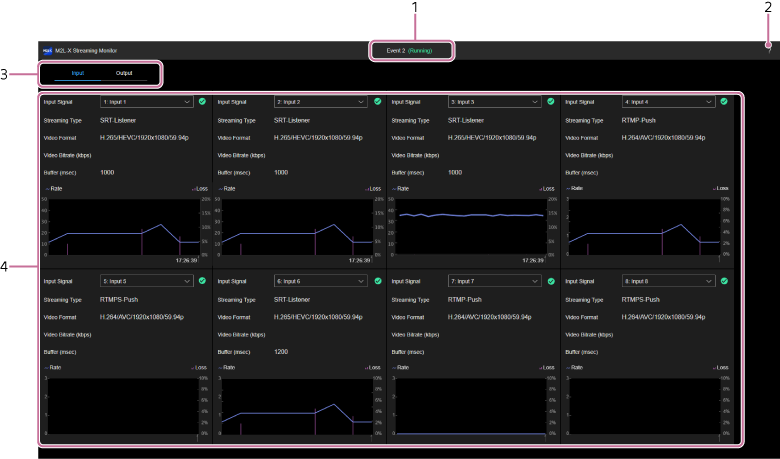
[Input] tab
[Output] tab
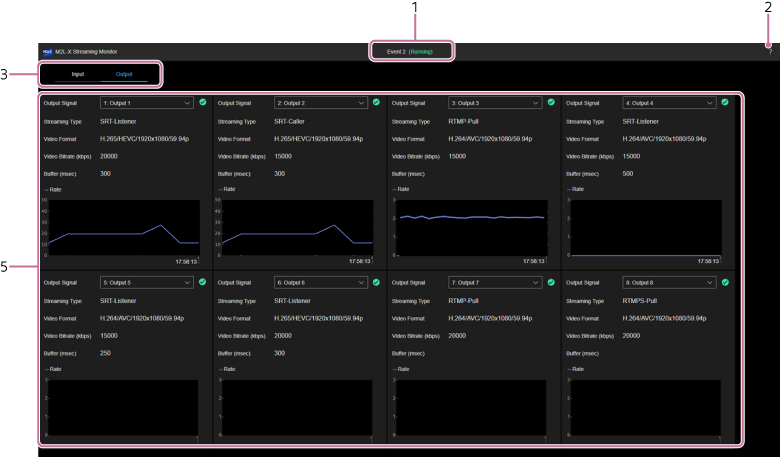
- Event name/status display: Displays the name/status of the event for which the [Streaming Monitor] screen was opened.
-
 (Help Guide): Select to display this Help Guide.
 -
Category tabs: Press a tab to switch the display contents.
- [Input]: Displays the status of the input source of the router input.
- [Output]: Displays the status of the output destination.
-
[Input] tab: Displays the input source settings and communications status icons and graphs. The status of up to eight input sources can be monitored.
- [Input Signal]: You can select an input source to monitor from the streaming input sources assigned on the [Router Input] tab of the [System Settings] screen. The following items display the selected input source settings and communications status icons and graphs.
-
Icon display
-
 (Normal): Streaming input in progress.
 -
 (Caution): Streaming input in progress in a state that differs from the configured settings, streaming could not be started normally, or streaming input has stopped.
 - No display: No streaming input.
-
- [Streaming Type]: Displays the streaming type.
- [Video Format]: Displays the video format.
- [Video Bitrate (kbps)]: Displays the video bit rate. Displayed only when [Streaming Type] is [XDCAM pocket].
- [Buffer (msec)]: Displays the buffer size. Displayed only when [Streaming Type] is [SRT] or [XDCAM pocket].
- Graph: Displays the communication rate and loss graph. The loss is displayed only when [Streaming Type] is [SRT] or [XDCAM pocket].
-
[Output] tab: Displays the output destination settings and communications status icons and graphs. The status of up to eight output destinations can be monitored.
- [Output Signal]: You can select an output destination to monitor from the streaming output destinations assigned on the [Output] tab of the [System Settings] screen. The following items display the selected output destination settings and communications status icons and graphs.
-
Icon display
-
(Normal): Streaming output in progress.
-
(Caution): Streaming output stopped due to an error or other cause (including state when waiting for connection).
- No display: No streaming output.
-
- [Streaming Type]: Displays the streaming type.
- [Video Format]: Displays the video format.
- [Video Bitrate (kbps)]: Displays the video bit rate.
- [Buffer (msec)]: Displays the buffer size. Displayed only when [Streaming Type] is [SRT].
- Graph: Displays the communication rate graph.
Graph operations
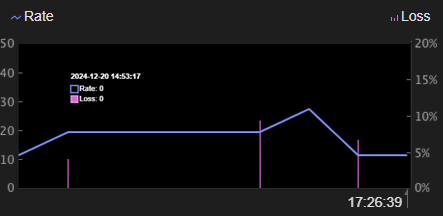
The graph is updated every second. Hover the mouse pointer over the graph to check the graph details.
The values on the vertical axes on the left and right of each graph are automatically adjusted according to the measured communication rate and loss values. The loss is displayed on the [Input] tab only.
TP1002078350
