


Structure of the [Group Manager] Screen
You can manage your group and check information about the groups in which you are a member on the [Group Manager] screen.
Managing your group ([Your Group] tab)
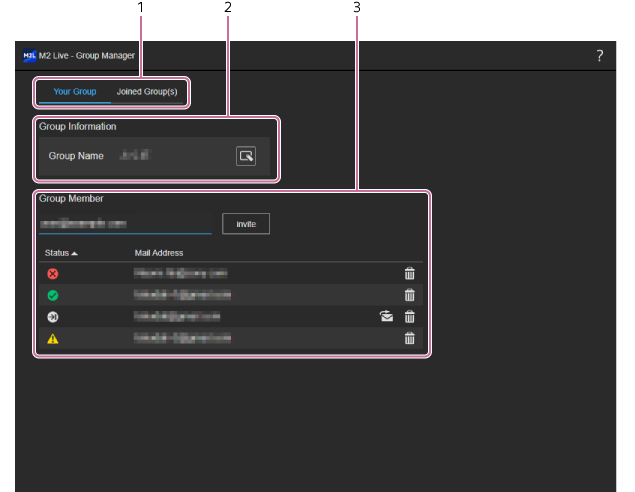
- Group selection tabs: Switches the content displayed on the [Group Manager] screen. To display information about your group, press [Your Group]. To display information about groups in which you are a member, press [Joined Group(s)].
-
[Group Information]: Displays the name of the group. To rename the group, press
 (Rename) and specify a group name in the dialog that appears.
 -
[Group Member]: Enter a mail address in the entry field at the top and press the [Invite] button to invite another user to your group. The users who are members of your group and the invited users are displayed in the list at the bottom. You can check the status of each user and delete users from the group.
[Status] column icons:-
 (Invitation accepted): Users who are members of the group.
 -
 (Awaiting approval): Users who have been invited to the group but have neither joined nor declined.
 -
 (Invitation declined): Users who declined an invitation to the group.
 -
 (Invitation error): Indicates that the invitation process was not executed normally due to a server error. Delete the user from the list and invite them again.
-
 (Resend) button: Resends an invitation mail to a user. You can resend an invitation only to users from whom you are waiting for approval.
 -
 (Delete) button: Deletes the user from the list. If the user is a member of the group, the user is also removed from the group.
-
Checking information about groups in which you are a member ([Joined Group(s)] tab)
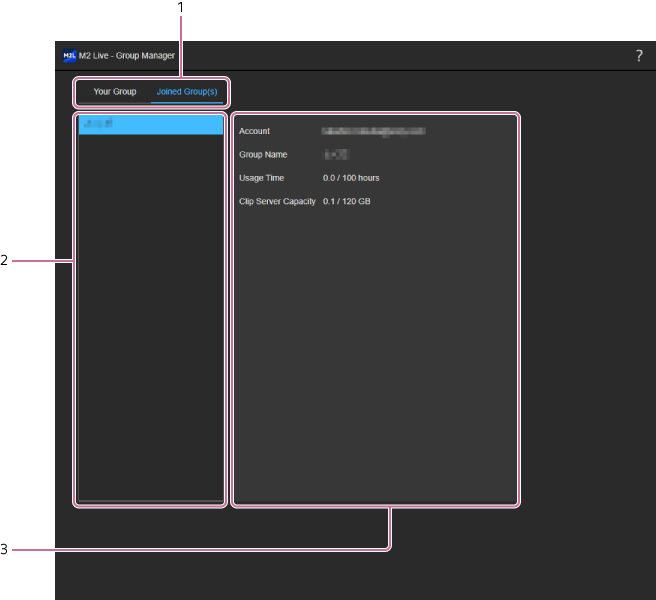
- Group selection tabs: Switches the content displayed on the [Group Manager] screen. To display information about your group, press [Your Group]. To display information about groups in which you are a member, press [Joined Group(s)].
- Group list: Displays the list of groups in which you are a member. Select a group to display information about the group on the right side.
-
Group information display area: Displays information about the group selected in the group list.
- [Account]: Displays the name of the user account that is the owner of the selected group.
- [Group Name]: Displays the name of the selected group.
-
[Usage Time]: Displays the current monthly usage time of the selected group. When the remaining level falls below 20% or below 4 hours, (Caution) appears. When the usage level exceeds the upper limit, (Warning) appears.
-
[Clip Server Capacity]: Displays the currently used storage capacity of the selected group. When the remaining free space falls below 20%, (Caution) appears. When the usage capacity exceeds the upper limit, (Warning) appears.
