


Connecting via HDMI/UVC (PXW-Z300 / PXW-Z200 / HXR-NX800 / ILME-FX5 / ILME-FX6 / MPC-2610)
High-resolution monitoring is supported by connecting with a camera that supports HDMI output or USB Video Class (UVC) output.
For HDMI output, remote control is supported using Wi-Fi connection or USB connection.
For UVC output, remote control is not supported.
Hint
- If you want to reduce battery consumption on the control device, set the HDMI OUT setting of the camera to 1920×1080.
Note
- When using remote control over a Wi-Fi connection, the focus map, face/eye detection frame, tracking frame, and framing frame may be offset from the live view if the wireless environment is unstable.

(A) Camera
(B) Wi-Fi connection or USB connection
(C) HDMI/UVC connection
(D) Control device on which this app is installed
Note
-
To use this function, a supported control device and camera are required.
- HDMI supported devices: Xperia PRO, PDT-FP1
- UVC supported devices: Xperia 1/5/PRO series, PDT-FP1, iPad USB Type-C (USB 3.0 or higher) devices, macOS devices
* Within the Xperia 1/5 series, the Xperia 1 model and Xperia 5 model do not support UVC. - UVC supported cameras: See “Supported Cameras, Connection Methods, and Functions.”
- To use this function, you must sign in with the same Sony account that you used when purchasing the license. For details about licenses, see “Purchasing a License.”
-

 : Connect a control device and camera.
For HDMI output:
Use an HDMI cable.For UVC output:
Use a USB Type-C cable.Hint
- You can establish an HDMI connection with a control device that does not support HDMI using an HDMI-to-UVC conversion adapter (sold separately).
- A USB Type-C to HDMI adapter cable cannot be used.
-
: For UVC output, set [Monitoring] – [USB Stream] – [Setting] to [On].
-
 : Launch the app and tap
  (App menu) – [Connect].
 -
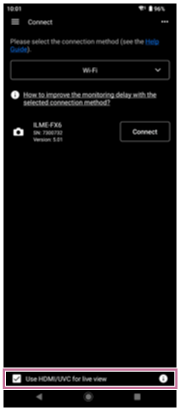
: Place a check mark in [Use HDMI/UVC for Live view].
Hint
- For HDMI output, remote control is supported using Wi-Fi connection or USB connection.
-
: Tap (App menu) – [Monitoring]
The [Monitoring] screen appears.
Note
- The resolution displayed in live view is HD (1080p) even if the output is 4K (2160p).
TP1002078352
