


Recording
You can record while monitoring the live view. The recorded file is stored on the control device.
This function is available only when connected with a camera that supports HDMI output or USB Video Class (UVC) output and is performing high-resolution monitoring.
-
Tap
 (Menu) – [Monitoring].
 -
Tap the
 (Settings) icon displayed next to
  (Start recording).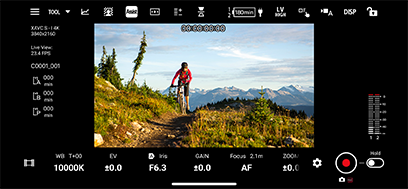
-
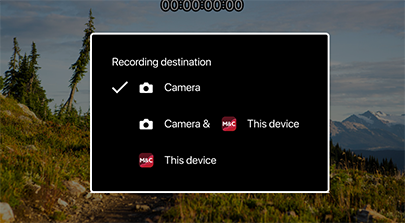
Select the action to take when you tap (Start recording).
-
Camera: Starts recording on the connected camera.
Note
- Only cameras that are connected via Wi-Fi or USB and can be remotely controlled can be selected.
-
Camera & This device: Starts recording using the connected camera and saves the live view on the control device.
Note
- Only cameras that are connected via Wi-Fi or USB and can be remotely controlled can be selected.
- This device: Saves the live view on the control device. The camera does not start recording.
-
-
Tap (Start recording).
The recording icon is displayed.
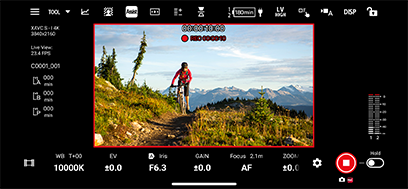
 (Camera): Camera is recording
 (This device): Recording to the control device
 -
Tap
 (Stop recording).
Recording on the camera and/or to the control device stops.
-
Tap
 (Clips).
Recorded files available for playback are displayed on the [This device] tab.
Note
- To use this function, you must sign in with the same Sony account that you used when purchasing the license. For details about licenses, see “Purchasing a License.”
TP1002274783
