


Loading a Scene File Saved on an External Device into Internal Memory
You can load a scene file stored on the device running the Web App into the internal memory of the camera.
-
Open [Paint/Look] – [Scene File] in the web menu.
The list of scene files stored in internal memory of the camera is displayed on the screen.
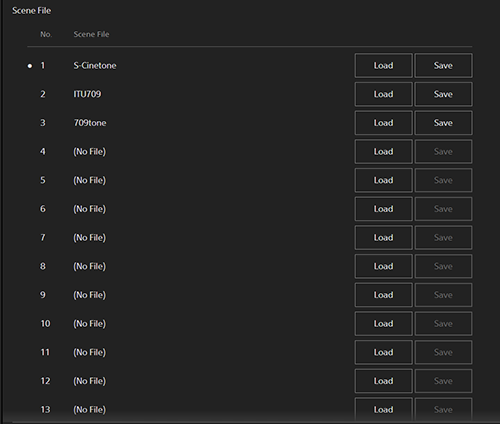
[No.]: Scene file number
[Scene File]: Scene file name
-
Press the [Load] button in the location to which you want to load and save a scene file.
A screen appears for selecting a file from the device running the Web App.
-
Select a scene file to load into internal memory of the camera.
Hint
- Once a scene file stored on an external device is loaded into internal memory, you can apply the settings to the current image quality settings by selecting the scene file using [Paint/Look] – [Scene File] – [Recall Internal Memory] in the camera menu.
Note
- When loading a scene file into a different model or into the same model with a different firmware version, only the values of common settings are loaded into internal memory.
- Even when settings can be loaded, the image quality may not be the same due to differences in sensors and camera signal processing between models.
TP1002077739
