


Recalling a Preset Framing for PTZ Auto Framing
When PTZ auto framing is enabled, three preset framings are displayed on the live operation screen.
You can change the composition instantly by recalling a preset framing instead of operating the AFR composition adjustment panel.
The unit is shipped with three typical composition preset framings.
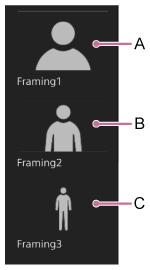
A: Close-up size
B: Waist size
C: Full body size
-
Set the [PTZ AFR] switch to the on position on the live operation screen.
The preset framing control panel is displayed on the left side of the live operation screen.
-
Press the preset framing to recall.
The
 (Preset framing menu) button appears at the top right of the image.
 -
Press the (Preset framing menu) button and select [Recall] from the displayed menu.
The selected preset framing is recalled in the AFR composition adjustment panel.
Hint
- You can also double-tap a preset framing to recall it.
To rename a preset framing
You can rename a preset framing. For details, see “Renaming a Preset Framing for PTZ Auto Framing.”
To change a preset framing
You can change a preset framing. For details, see “Replacing a Preset Framing for PTZ Auto Framing with a New Composition.”
Hint
- The number of preset framings is three (fixed). They cannot be added or deleted.
To reset a preset framing
You can restore the framing to the factory default state. For details, see “Resetting a Preset Framing for PTZ Auto Framing.”
