


Restoring PTZ Auto Framing Settings After Restoring a Preset Position
You can restore PTZ auto framing settings after restoring a preset position.
Note
- Among the advanced settings for a preset position, the PTZ auto framing items are disabled in “Ball Sports (Basketball)” mode.
-
Set the [PTZ AFR] switch to the on position on the live operation screen.
For details PTZ auto framing, see “About PTZ Auto Framing.”
-
Press the image for the preset position whose PTZ auto framing settings you want to restore.
The
 (Preset position menu) button appears at the top right of the image.
 -
Press the (Preset position menu) button and select [Edit…] from the displayed menu.
The setup screen for the selected preset position appears.
-
Press the [PTZ AFR] tab.
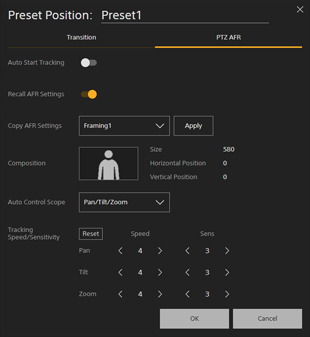
The PTZ auto framing setup screen for the selected preset position appears.
-
Set [Recall AFR Settings] to the on position.
Subsequently, when saved framing is restored, the PTZ auto framing settings will be restored.
-
Select one of the current AFR settings or preset framing 1 to 3 for PTZ auto framing that you want to copy in [Copy AFR Settings] and press the [Apply] button.
The settings of the selected PTZ auto framing are reflected in [Composition], [Auto Control Scope], and [Tracking Speed/Sensitivity].
For details about preset framing, see “Editing Preset Framing for PTZ Auto Framing.”
-
Set [Auto Control Scope] and [Tracking Speed/Sensitivity], and press the [OK] button.
Subsequently, when saved framing is restored, the PTZ auto framing settings will be restored.
Hint
- If restoring a preset position is canceled, the PTZ auto framing settings will not be restored.
TP1002273908
