


Adjusting the Audio Recording Level using the XLR Handle Unit (ILME-FX5 only)
Adjust the audio recording level for the audio input from the INPUT1/INPUT2/INPUT3 connectors.
-
Set the AUTO/MAN (CH1 / CH2 / CH3/4) switches for the channels with the audio to adjust to the “MAN” position.
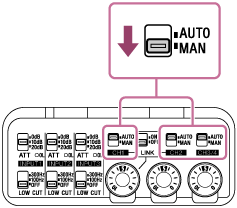
-
Turn the AUDIO LEVEL dial to adjust the volume to the appropriate level.
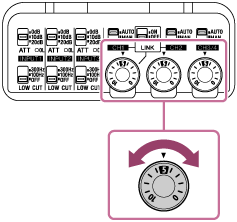
To check for the appropriate level, use the level meter of the camera or connect headphones to the camera.
To adjust the audio recording level automatically
Set the AUTO/MAN switch to the “AUTO” position.
If the input audio is loud, the audio recording level will be automatically reduced to prevent distortion.
Hint
- When recording in 32-bit float format, the audio recording level automatic adjustment function is disabled. The audio recording level is set to “5” (fixed) on the AUDIO LEVEL dial when the AUTO/MAN switch is set to the “MAN” position. However, as long as analog clipping does not occur, sounds from quiet to loud can be recorded without distortion.
You can also edit the audio data so that it is at the optimal level without distortion by adjusting the gain of the recorded audio file. - When the LINK switch is set to the “ON” position and the AUTO/MAN (CH1) switch is set to the “MAN” position, you can adjust the audio recording level for both CH1 and CH2 using the AUDIO LEVEL (CH1) dial. When the AUTO/MAN (CH1) switch is set to the “AUTO” position, CH2 is also set to “AUTO.”
However, the audio recording level automatic adjustment function is not linked between CH1/CH2 or between CH3/CH4. To link the operation between CH1/CH2 or between CH3/CH4, set [Audio] – [Audio Input] – [CH1&2 AGC Mode] or [CH3&4 AGC Mode] to [Stereo] in the full menu.
TP1002215307