


Switching Between the LCD Monitor/Viewfinder Display
The viewfinder automatically turns on when the eyepiece sensor detects you looking into the viewfinder.
When the image is displayed in the viewfinder, the LCD monitor image is turned off (images are not displayed in the LCD monitor and viewfinder simultaneously).
If the eyepiece sensor is activated incorrectly due to external factors, such as your posture when holding the camera, the viewfinder may turn on and the LCD monitor may turn off.
If this occurs, you can temporarily turn the viewfinder and LCD monitor on/off by pressing the VF/LCD toggle button on the viewfinder or an assignable button assigned with [VF/LCD].
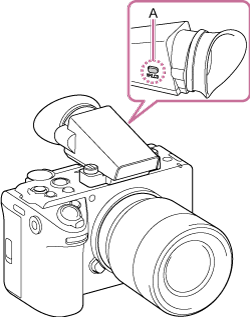
A: VF/LCD toggle button
You can set the method for switching between the viewfinder and LCD monitor display using [Monitoring] – [VF Setting] – [LCD Monitor/VF Select] in the full menu.
[LCD Priority Auto]:
Automatically switches to the viewfinder screen when you look into the viewfinder.
The eyepiece sensor may be disabled, preventing switching to the viewfinder screen depending on the open/closed status or angle of the LCD monitor. However, the eyepiece sensor is always enabled when the viewfinder is raised, and the image automatically switches to the viewfinder screen when you look into the viewfinder.
[VF Priority Auto]:
Automatically switches to the viewfinder screen when you look into the viewfinder.
The eyepiece sensor is always enabled for switching to the viewfinder screen, regardless of the open/closed status or angle of the LCD monitor or status of the viewfinder.
[LCD Monitor]:
Turns the viewfinder off, and the image is always displayed on the LCD monitor.
[VF]:
Turns the LCD monitor off, and the image is always displayed in the viewfinder.