


Adjusting the Angle of the LCD Monitor
You can adjust the angle of the LCD monitor for comfortable viewing when shooting in any position.
-
When holding the camera in a high or low position, pull the LCD monitor forward and adjust the angle.
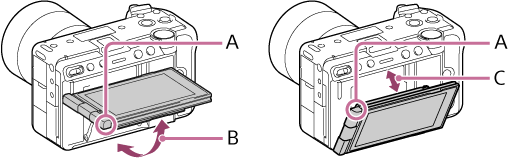
A: Finger pull position
B: Approx. 98 degrees (relative to rear side of camera)
C: Approx. 40 degrees (relative to rear side of camera)
-
When the LCD monitor is opened horizontally and the lens is pointing towards you for a selfie, the image on the LCD monitor will be displayed horizontally flipped. Turning the LCD monitor toward the back will cancel the flipped display.
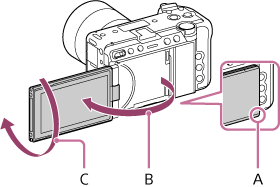
A: Finger pull position
B: Approx. 180 degrees
C: Approx. 270 degrees
-
If you want to switch the screen display orientation for a selfie while the LCD monitor is pulled out from the rear of the camera, turn the panel all the way in direction (A). To cancel the screen orientation for selfie shooting, turn the panel completely in direction (B). (When [LCD Monitor H/V Flip] is set to [Auto])
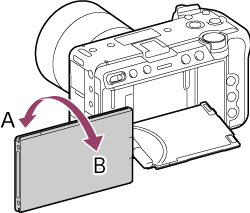
- In the default settings, the image inversion display automatically switches according to the direction the LCD monitor is facing when opened. You can also set a fixed display method using [Monitoring] – [LCD Monitor Setting] – [LCD Monitor H/V Flip] in the full menu.
Note
- The angle of the LCD monitor may be difficult to adjust when the unit is attached to a tripod. In that case, first loosen the tripod screw and then adjust the angle of the LCD monitor.
- Do not use excessive force when opening, closing, or rotating the LCD monitor. Doing so will cause a malfunction.