


Playback Operation Screen
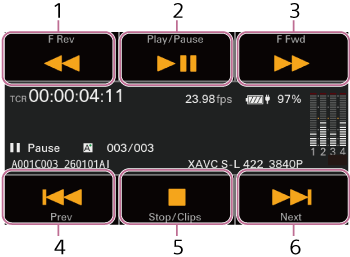
When the LCD monitor is in information display mode, you can select a clip to play on the clip list screen to display the playback operation screen. The function display area supports touch operation.
Function display area
-
[F Rev] button
Plays video in the reverse direction at high speed.
Press the button repeatedly to switch between three speeds.
-
[Play/Pause] button
Plays a clip or pauses clip playback.
-
[F Fwd] button
Plays video in the forward direction at high speed.
Press the button repeatedly to switch between three speeds.
-
[Prev] button
Jumps to the start of a clip in the reverse direction.
-
[Stop/Clips] button
Stops playback and returns to the clip list screen.
-
[Next] button
Jumps to the start of a clip in the forward direction.
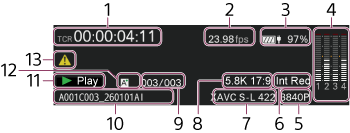
Status display area
-
Time data display
Displays the timecode of the playback position.
-
Frame rate indicator
Displays the frame rate of the playback clip.
-
Power status indicator
Displays the remaining battery charge.
-
Audio level meter
Displays the playback audio levels.
-
Image resolution indicator
Displays the image resolution.
-
Special recording mode indicator
Displays the special recording mode information of the playback clip.
-
Codec name display
Displays the name of the codec.
-
Image size indicator
Displays the image size.
-
Clip number / Total number of clips indicator
Displays the current playback clip number / total number of playable clips.
-
Clip name display
Displays the name of the clip.
-
Playback status indicator
Displays the playback operating status.
-
Media indicator
Displays the current playback media.
A
 (Write-protected) icon is displayed on the right if the memory card is locked.
 -
Warning/error icon
Displayed when a warning or error occurs.
You can check the content of warnings and errors by displaying the menu. If the screen display is superimposed on an external monitor, you can also check it on the external monitor.