


Clip Operations
On the clip list screen, you can operate the clips or check clip properties using the [Clip Operations] menu in the full menu.
Menu items for clip operations
- [Display Clip Properties]
- [Set Clip Flag]
- [Lock/Unlock Clip]
- [Delete Clip]
- [Transfer Clip]
- [Transfer Clip (Proxy)]
- [Filter Clips]
- [Customize View]
Displaying clip properties
Select [Clip Operations] – [Display Clip Properties] in the full menu.
Press the multi selector left/right button to jump to the previous/next clip.
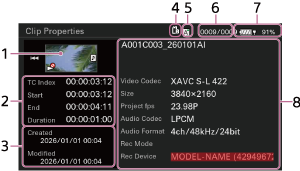
- Current clip image
-
Timecode display
[TC Index]: Timecode of clip
[Start]: Timecode at the start of recording
[End]: Timecode at the end of recording
Duration: Duration of the clip
- Creation date/time and modified date/time
- Currently selected memory card
- Memory card write-protected icon
- Clip number/Total number of clips
- Battery icon
-
Clip information
Clip name/Recording format/Special recording mode/Storage device name
Adding clip flags
You can add clip flags ( /
/  /
/  ) to clips to filter the display of clips based on the clip flags.
Select the thumbnail for the clip to which you want to add a clip flag, then select the clip flag using [Clip Operations] – [Set Clip Flag] in the full menu.
| Setting | Added clip flag |
|---|---|
| [Add OK] |

|
| [Add NG] |

|
| [Add KEEP] |

|
Hint
- You can also use an assignable button assigned with the clip flag function to add clip flags.
- You can also assign the clip flag function to [User 1] to [User 6] on the user functions screen.
Filtering the clip display
Select [Clip Operations] – [Filter Clips] in the full menu, and select a clip flag type to display only those clips that have the specified flag.
To display all clips, select [All].
Hint
- You can also switch between filters in sequence by pressing an assignable button assigned with [Display] or pressing the USER button.
Deleting clips
You can delete clips from a memory card.
Select [Clip Operations] – [Delete Clip] – [Select Clip] / [All Clips] in the full menu.
[Select Clip]: Deletes the selected clip. Multiple clip selection is supported.
[All Clips]: Deletes all of the displayed clips.
Transferring a clip to a server on the Internet or to a server on the local network
For details, see the following topics.
Preparing to Transfer Files
Selecting and Transferring a Clip
Changing information of the clip list screen
You can change the clip/frame information displayed below the thumbnail.
Select [Clip Operations] – [Customize View] – [Clips Caption] in the full menu, and select the information to display.
[Clip Name]: Clip name
[Date Time]: Date and time the clip was created and last modified
[Time Code]: Timecode
[Duration]: Duration
[Sequential Number]: Thumbnail number