


Structure of the Clip List Screen
When you press the CLIPS button, clips recorded on the memory card are displayed on the clip list screen.
You can select a clip on the clip list screen and start playback from that clip. On the clip list screen, you can operate the clips or check clip properties using the [Clip Operations] menu in the full menu. In information display mode, you can perform playback operations on the LCD monitor (playback operation screen).
Press the CLIPS button again to close the clip list screen and return to the shooting screen.
The thumbnails (reduced images) on the clip list screen support touch operation.
Note
- Of the clips displayed on the clip list screen, only those clips recorded in the currently selected recording format can be played back. If a clip cannot be played back, check the recording format.
- If you open the full menu while the clip list screen is displayed, the full menu will be displayed on the external monitor. Exercise caution when opening password-related settings.
Information for the clip at the cursor position is displayed at the bottom of the screen.
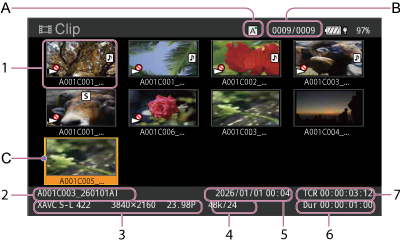
A: Currently selected memory card (a lock icon is displayed on the right if the card is protected)
B: Clip number/Total number of clips
C: Cursor (yellow)
-
Thumbnail (reduced image)
Displays the index picture of a clip. When recording, the first frame of the clip is automatically set as the index picture.
Clip/frame information is displayed below the thumbnail. You can change the information displayed using [Clip Operations] – [Customize View] – [Clips Caption] in the full menu. The clip status is also displayed as an icon.
Icon Meaning  (Not playable)
Clip cannot be played back -
Clip name
Displays the name of the selected clip.
-
Recording format during recording
Displays the file format of the selected clip.
-
Special recording information
Displays the recording mode only if the clip was recorded using a special recording mode.
For clips recorded when [Shooting] – [FPS] – [Fixed/Variable Select] is set to [Variable] in the full menu, the frame rate is displayed on the right.
- Creation date
- Duration of the clip
- Timecode