


Menu Screen
You can check the settings and status of the unit on the menu screen.
To display the menu
- Press the MENU button.
To switch the menu screen
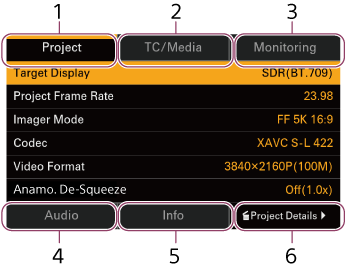
Select an item (1 to 6) on the screen to display the corresponding screen.
With an item selected, you can also switch screens by turning the multi selector or multi-function dial left/right.
Pressing item 6 on the selected category screen will display the full menu for the selected category.
To exit the menu
- Press the MENU button.
To change a setting
With the menu screen displayed, press the multi-function dial or multi selector to enable selection of a setup item on the screen.
You can also select items directly using touch operation.
[Project] category
Use to set and check basic settings and recording format.
| Display item | Description | Corresponding full menu item |
|---|---|---|
| [Target Display] | Sets the video standard for recording/output in [Custom] shooting mode. | [Base Setting] – [Target Display] |
| [Input Color Space] | Sets the color gamut. | [Base Setting] – [Cine EI/Flexible ISO Setting] – [Input Color Space] |
| [Project Frame Rate] | Selects the project frame rate. | [Rec Format] – [Project Frame Rate] |
| [Imager Mode] | Sets the effective picture size. | [Rec Format] – [Imager Mode] |
| [Codec] | Sets the codec. | [Rec Format] – [Codec] |
| [Video Format] | Sets the recording format. | [Rec Format] – [Video Format] |
| [Anamo. De-Squeeze] | Sets the de-squeeze ratio for the image displayed on the specified output system when shooting with an anamorphic lens. | [Anamo. De-Squeeze] – [Ratio] |
[TC/Media] category
Use to set and check the timecode value and TC format.
| Display item | Description | Corresponding full menu item |
|---|---|---|
| [TC Mode/Run] | Sets the timecode running mode. | [Timecode] – [Mode] / [Run] |
| [TC Display] | Switches the time data display. | [TC Display] – [Time Data Display] |
| [TC Setting] | Sets the timecode to an arbitrary value. Resets the timecode to 00:00:00:00. Sets the timecode format. | [Timecode] – [Manual Setting] / [Reset] / [TC Format] |
| [Camera ID] | Sets the camera ID used when generating clip names. | [Clip Name Format] – [Camera ID] |
| [Reel Number] | Sets the [Reel Number] numeric part used when generating clip names. | [Clip Name Format] – [Reel Number] |
| [Camera Position] | Sets the shot number prefix used when generating clip names. | [Clip Name Format] – [Camera Position] |
| [Clip Name] | Displays the title portion of the clip name when [Auto Naming] is set to [Title]. | [Clip Name Format] – [Title Name Settings] |
| [Format Media] | Formats the memory card in card slot A or B. | [Format Media] – [Media(A)] / [Media(B)] |
[Monitoring] category
Use to set and check the signal format, on-screen display, and marker overlay status on the HDMI, LCD monitor, and viewfinder external outputs.
| Display item | Description | Corresponding full menu item | |
|---|---|---|---|
| [LCD/VF] | [Frame Line] | Selects the frame line to display superimposed over the LCD monitor and viewfinder image. | [Frame Line] |
| [HDMI] | [Output Format] | Sets the HDMI output resolution. | [Output Format] |
| [Info. Disp.] | Turns HDMI screen display output on/off. | [Output Display] | |
| [Frame Line] | Selects the information to display superimposed over the HDMI output. | [Frame Line] | |
| [IP] | [Output Format] | Displays the resolution of streaming. | [Stream] – [RTMP/RTMPS 1] to [RTMP/RTMPS 3] – [Resolution] [Stream] – [SRT-Caller 1] to [SRT-Caller 3] – [Resolution] |
| [Info. Disp.] | Displays the status of information displayed superimposed on the streaming output ([Off] (fixed)). | – | |
| [Frame Line] | Displays the status of frame lines, etc., displayed superimposed in the streaming output ([Off] (fixed)). | – | |
[Audio] category
Use to set and check audio sources, levels, and other settings.
| Display item | Description | Corresponding full menu item | |
|---|---|---|---|
| Inputs | [CH1 Level Control] to [CH4 Level Control] | Turns auto adjustment on/off. | [Audio Input] – [CH1 Level Control] to [CH4 Level Control] |
| [CH1 Input Level] to [CH4 Input Level] | Adjusts the input level of recording channels. | [Audio Input] – [CH1 Input Level] to [CH4 Input Level] | |
| [Audio Rec Format] (CH1 to CH4) | Displays the audio recording format. | [Audio Rec Format] – [Audio Rec Format] | |
| [32bit float WAV Rec] (CH1 to CH4) | Displays the 32-bit float audio data recording status. | [32bit float WAV Rec] – [Setting] | |
| [CH1 Input Select] to [CH4 Input Select] | Switches the input source. | [Audio Input] – [CH1 Input Select] to [CH4 Input Select] | |
| [CH1 Wind Filter] to [CH4 Wind Filter] | Sets the microphone wind noise reduction filter. | [Audio Input] – [CH1 Filter] to [CH4 Filter] – [Wind Filter] | |
| [Noise Cut Filter] (CH1 to CH4) | Sets noise reduction. | [Audio Input] – [CH1 Filter] to [CH4 Filter] – [Noise Cut Filter] | |
| [Audio Input Level] | Sets the audio input level. | [Audio Input] – [Audio Input Level] | |
| Outputs | [HDMI Out CH] | Sets the combination of audio channels output for HDMI only or for HDMI and streaming. | [Audio Output] – [HDMI Out CH] |
| [Volume] | Set the monitoring audio level of the headphones connector and built-in speaker. | [Audio Output] – [Volume] | |
| [Monitor CH] | Sets the audio channel output to the headphones connector and built-in speaker. | [Audio Output] – [Monitor CH] | |
[Info] category
Use to check the status of the unit, media, and battery.
| No. | Page | Description |
|---|---|---|
| 1 | [Camera Condition] | Displays warning messages and error messages. When there are no messages, “All Systems are OK” is displayed at the top of the display area. |
| 2 | [Firmware] | Displays the serial number and firmware version of the unit. |
| 3 | [System] |
Displays the following system information.
|
| 4 | [Battery] |
Displays the following battery information.
|
| 5 | [Media] | Displays the remaining capacity, remaining recording time, and lifespan data of the memory cards. |
| 6 | [Lens] |
Displays the following information about the attached lens.
Note
|