


[Gate Properties] Dialog (Properties for Gates Generated by Data Cleaning)
The [Gate Properties] dialog for gates generated by data cleaning displays information about the selected plot and the setting information from when data cleaning was run. You can change the setting of each parameter, as required.
The [Gate Properties] dialog is displayed by clicking  of [Edit] on the [Gate Tools] tab of the ribbon or right-clicking a gate and selecting [Properties].
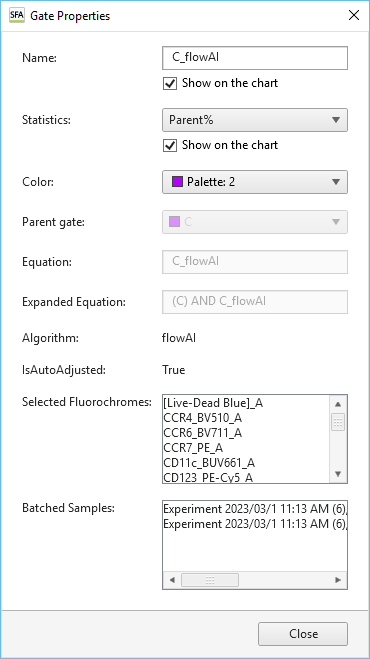
[Name]
Displays the name of the gate.
Place a check mark in [Show on the chart] to display the name of the gate on the plot.
[Statistics]
Selects the statistics parameter configured for the gate.
Place a check mark in [Show on the chart] to display the statistics parameter on the plot.
- [Total%]: Proportion of events in the gated population as a percentage of the total number of events ([All Events]).
- [Parent%]: Proportion of events in the gated population as a percentage of the number of events in the parent population.
- [Events]: Number of events in the gated population.
[Color]
Selects the color of the gate.
[Parent Gate]
Displays the parent gate.
[Equation]
Displays the equation of the gate. This parameter cannot be modified.
[Expanded Equation]
Displays the equation in the format (Parent gate) AND Equation. Note that this item is omitted if the parent gate is “All Events.” This parameter cannot be modified.
[Algorithm]
Displays the algorithm used when running data cleaning.
[IsAutoAdjusted]
Displays whether auto adjustment was performed as a pre-process.
[Selected Fluorochromes]
Displays the fluorochromes selected when running data cleaning.
[Batched Samples]
Displays the samples that were batch processed.
[Close]
Closes the dialog.
